
How to Download a File
Download firmware with an active package: authorize your computer once, then start the download.
To download, you need to be signed in with an active download package. The first time you download on a computer, you authorize it once. After that, downloads start straight away.
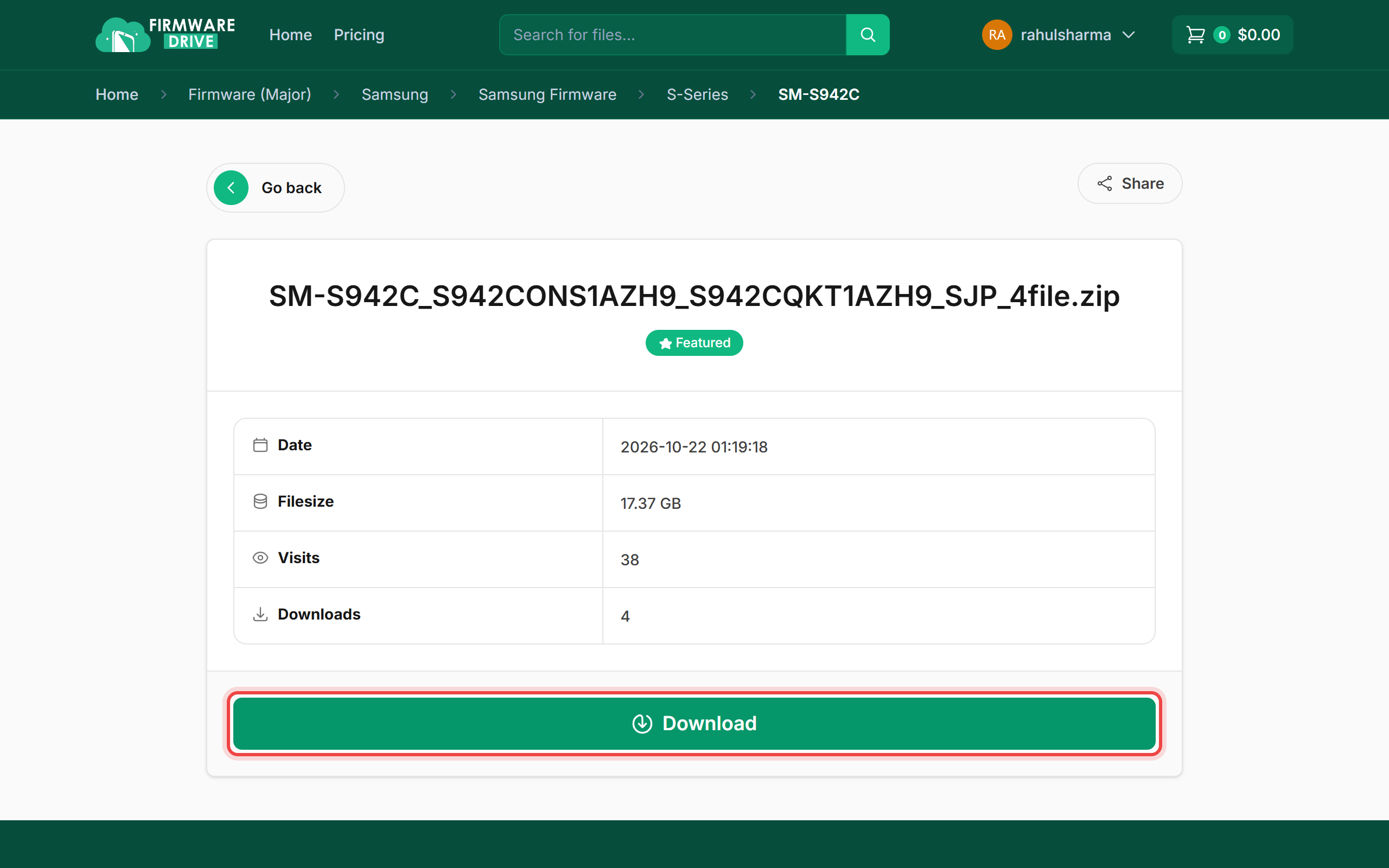
Step 1: Open the file and click Download
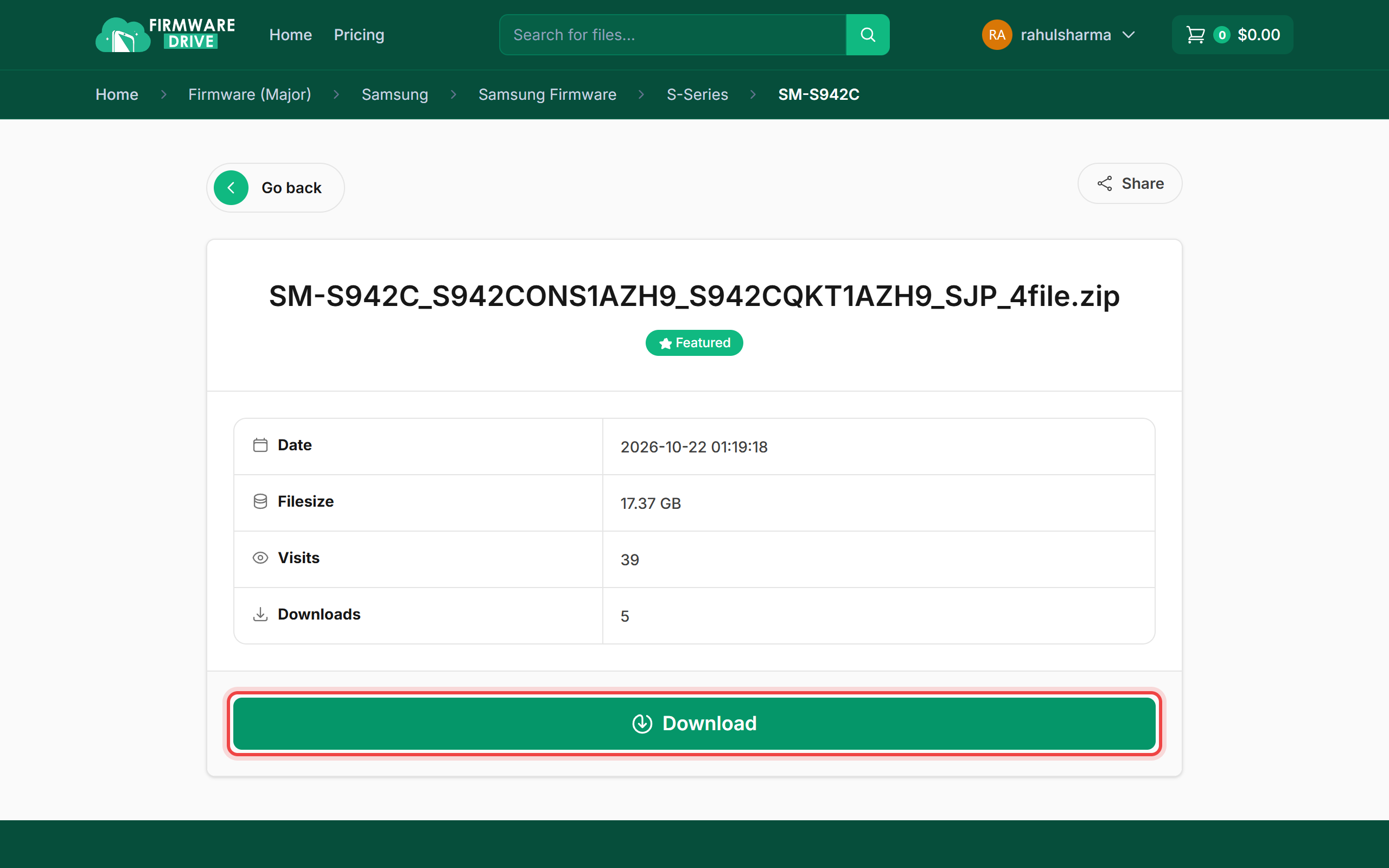
Find your file (see How to Find and Search Firmware Files), open it and check the date and file size. Click Download. If you do not have an active package, the button says View plans instead.
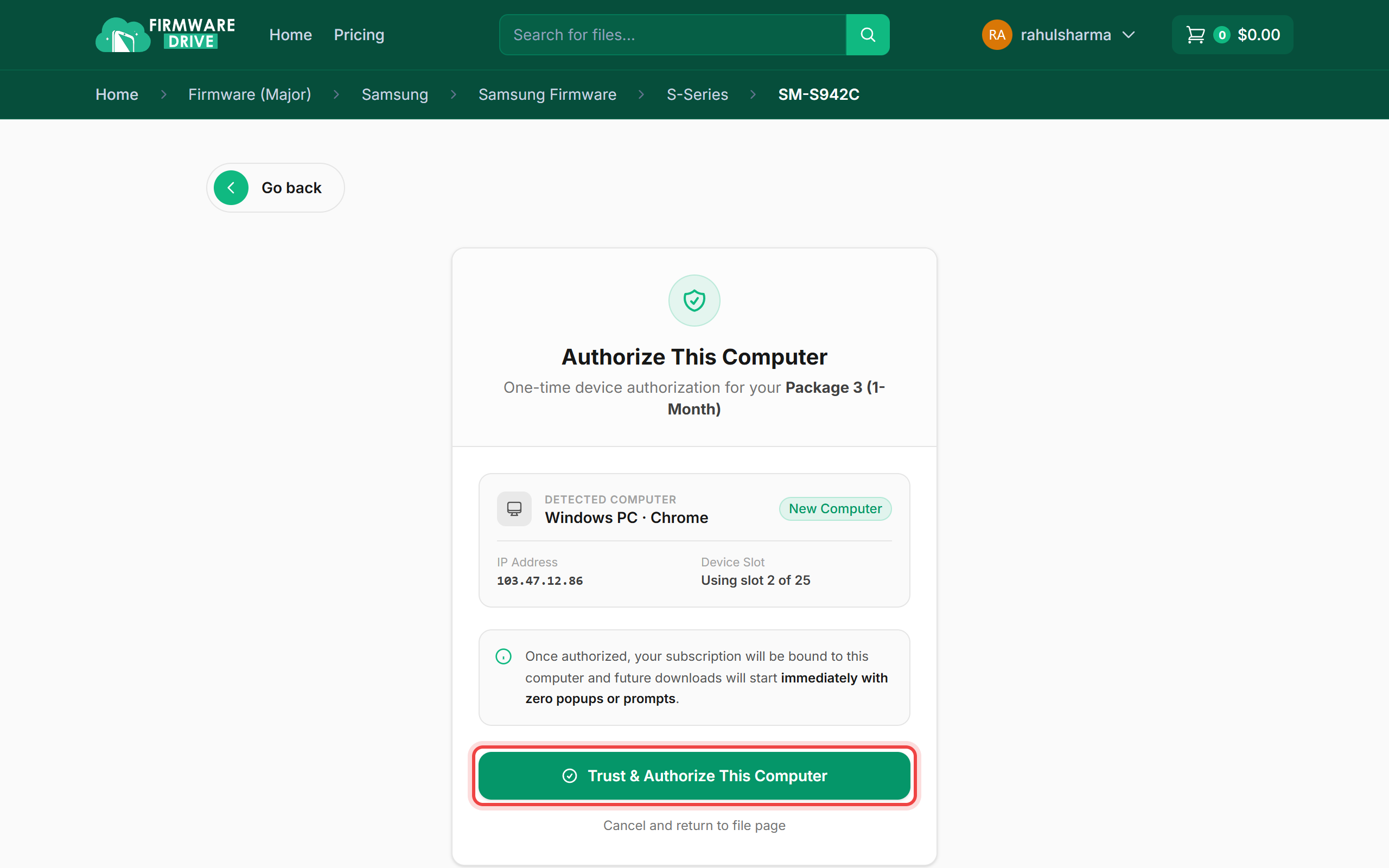
Step 2: Authorize this computer (first time only)
On a new computer or browser you see Authorize This Computer with the detected device and how many device slots your plan has used. Click Trust & Authorize This Computer.
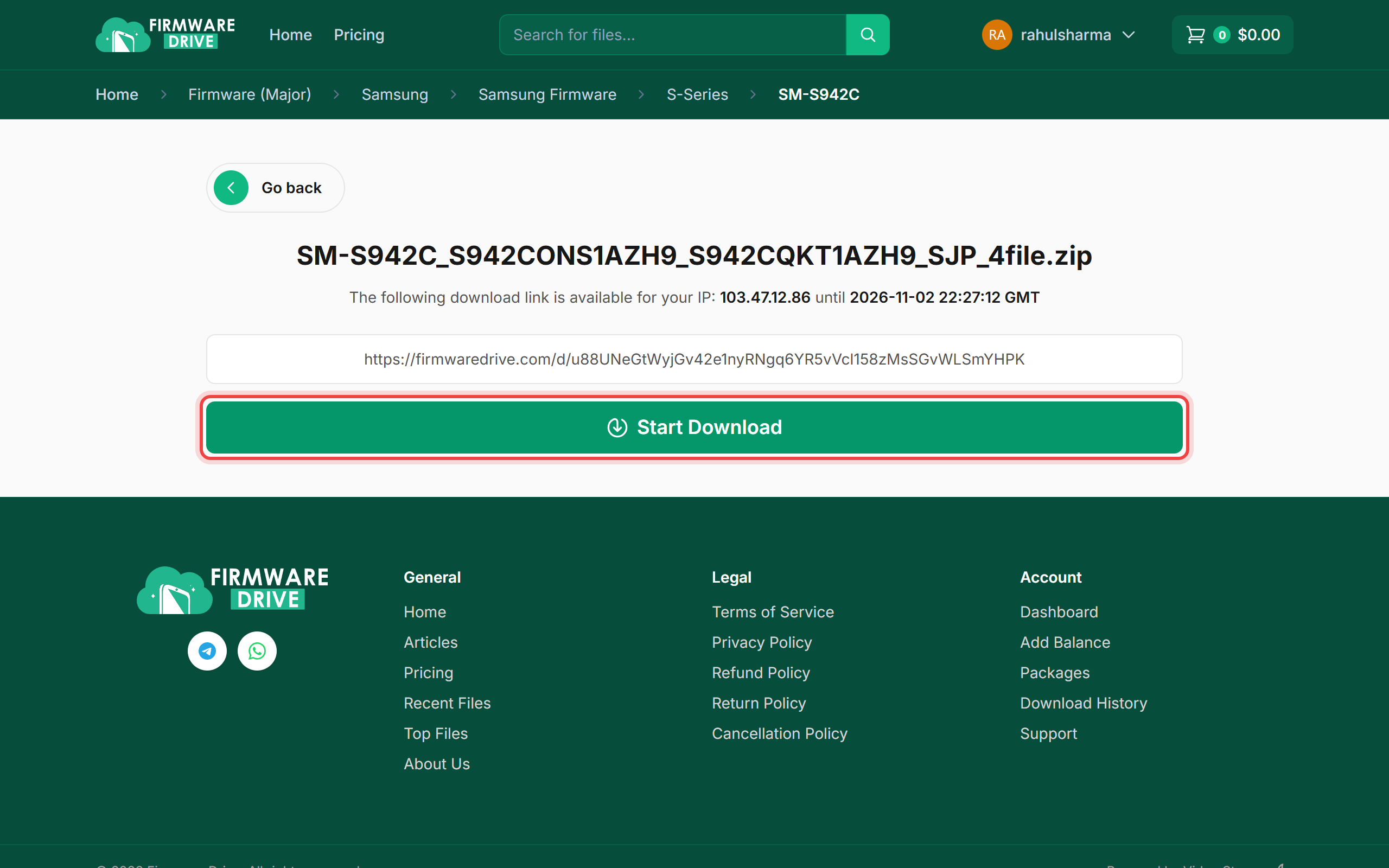
Step 3: Start the download
Your personal download link is shown with your IP address and the time it stays valid (24 hours). Click Start Download. Keep the link private: it is tied to your account.
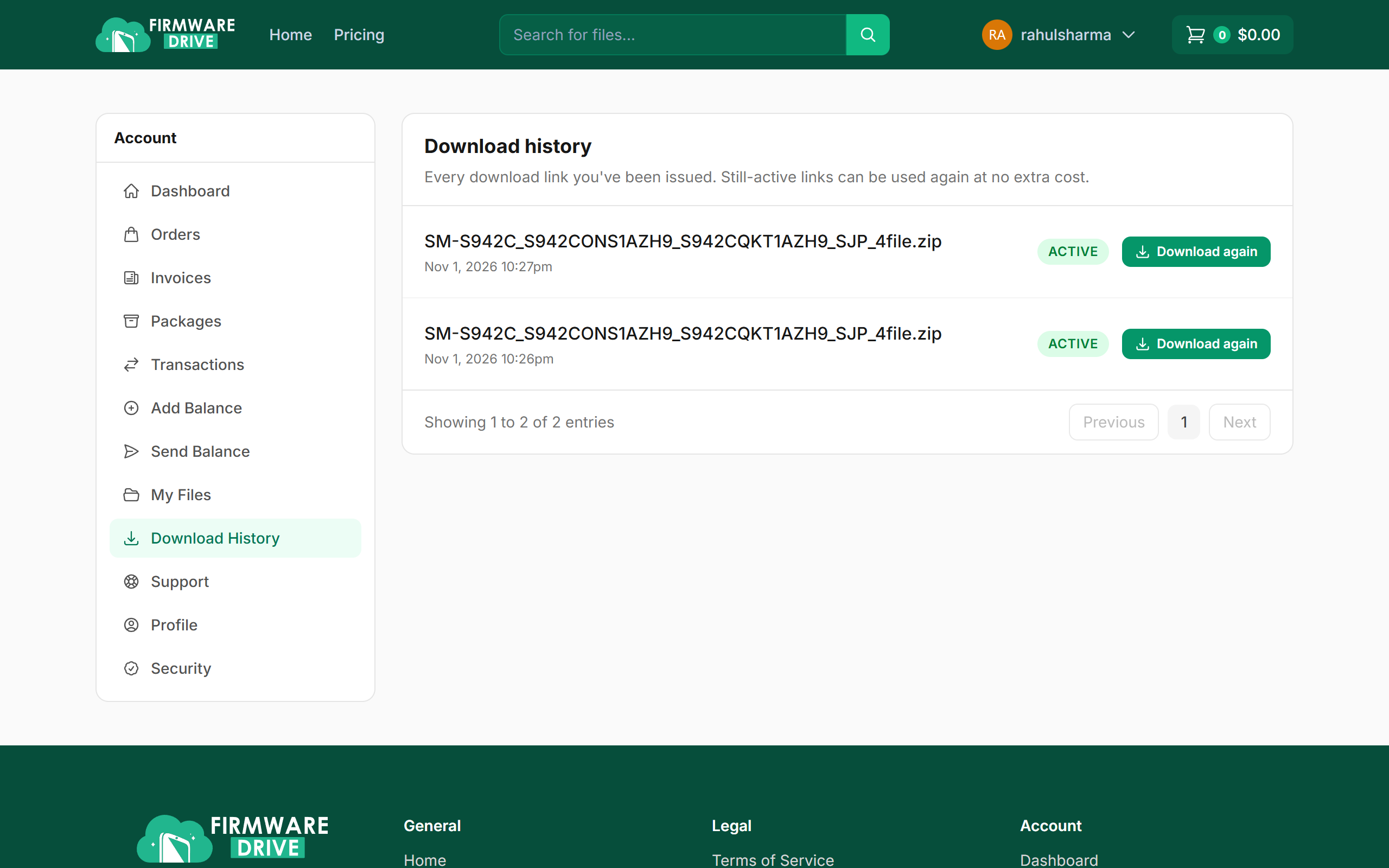
Step 4: Find it again in Download History
Every link you get is saved under Account > Download History. While a link is still active, click Download again to reuse it at no extra cost.
Step 5: Next time it is one click
On an authorized computer, clicking Download takes you straight to your download link.
Good to know
- Large firmware files are best downloaded with a download manager (IDM, Free Download Manager) on a stable connection.
- Each plan has a device limit. See How to Check Your Package Usage and Devices to see or remove devices.
- Download not starting? Open a support ticket with the file name.
More guides: Help & Guides.