
How to Create a Firmware Drive Account
Sign up for a free Firmware Drive account in under a minute, step by step with screenshots.
A free account lets you buy download packages, keep your download history, top up a wallet and open support tickets. Signing up takes about a minute and there is no email verification step to wait for.
Step 1: Open the sign-up page
Go to firmwaredrive.com and click Sign up in the top right corner of the page. On a phone, open the menu first.

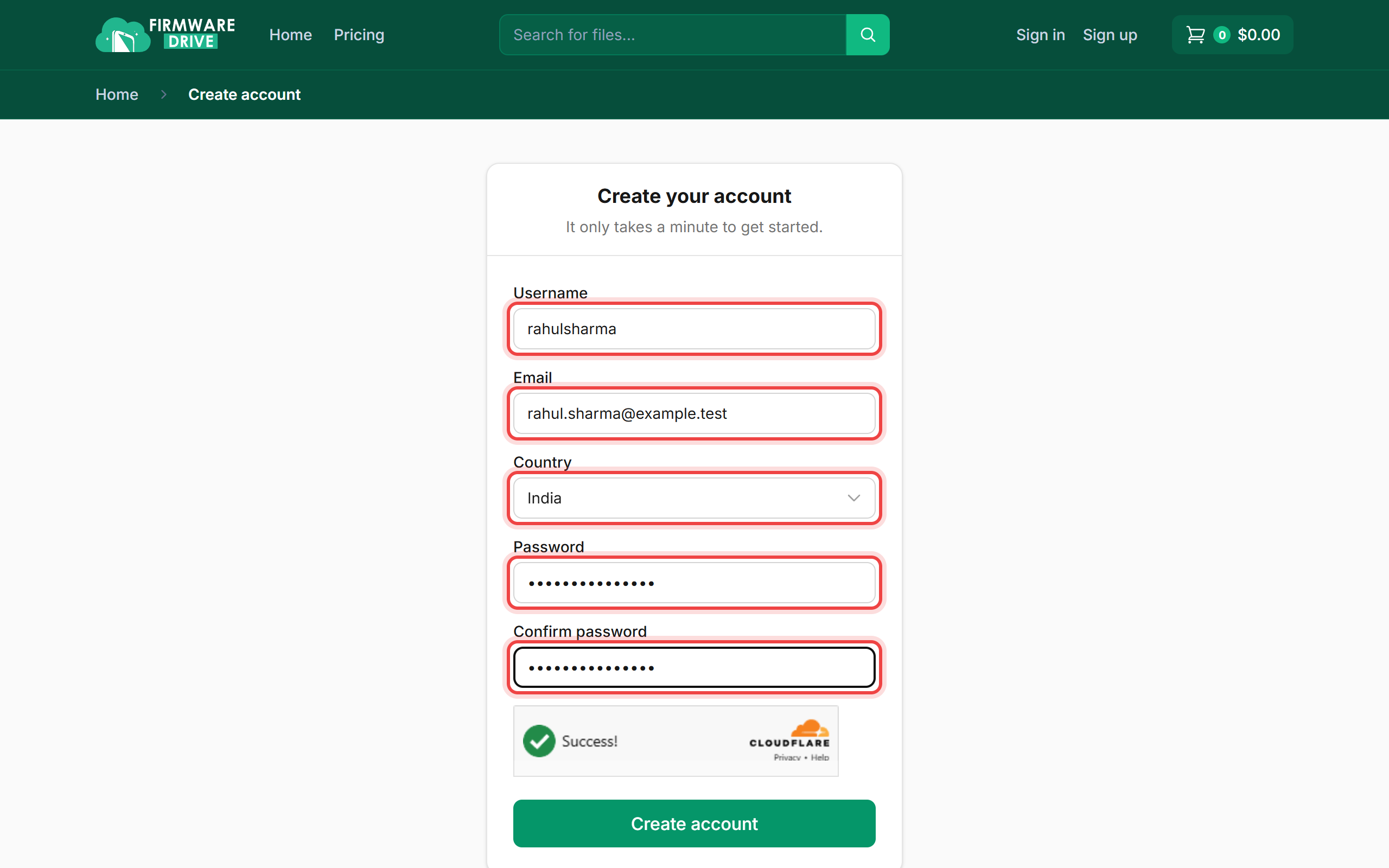
Step 2: Fill in your details
Enter the details below. All fields are required.
- Username: letters, numbers, dashes and underscores. You can sign in with it later.
- Email: use a mailbox you can open. Password resets, invoices and support replies are sent here.
- Country: pick your country. It decides which payment methods you see at checkout.
- Password and Confirm password: type the same strong password twice.
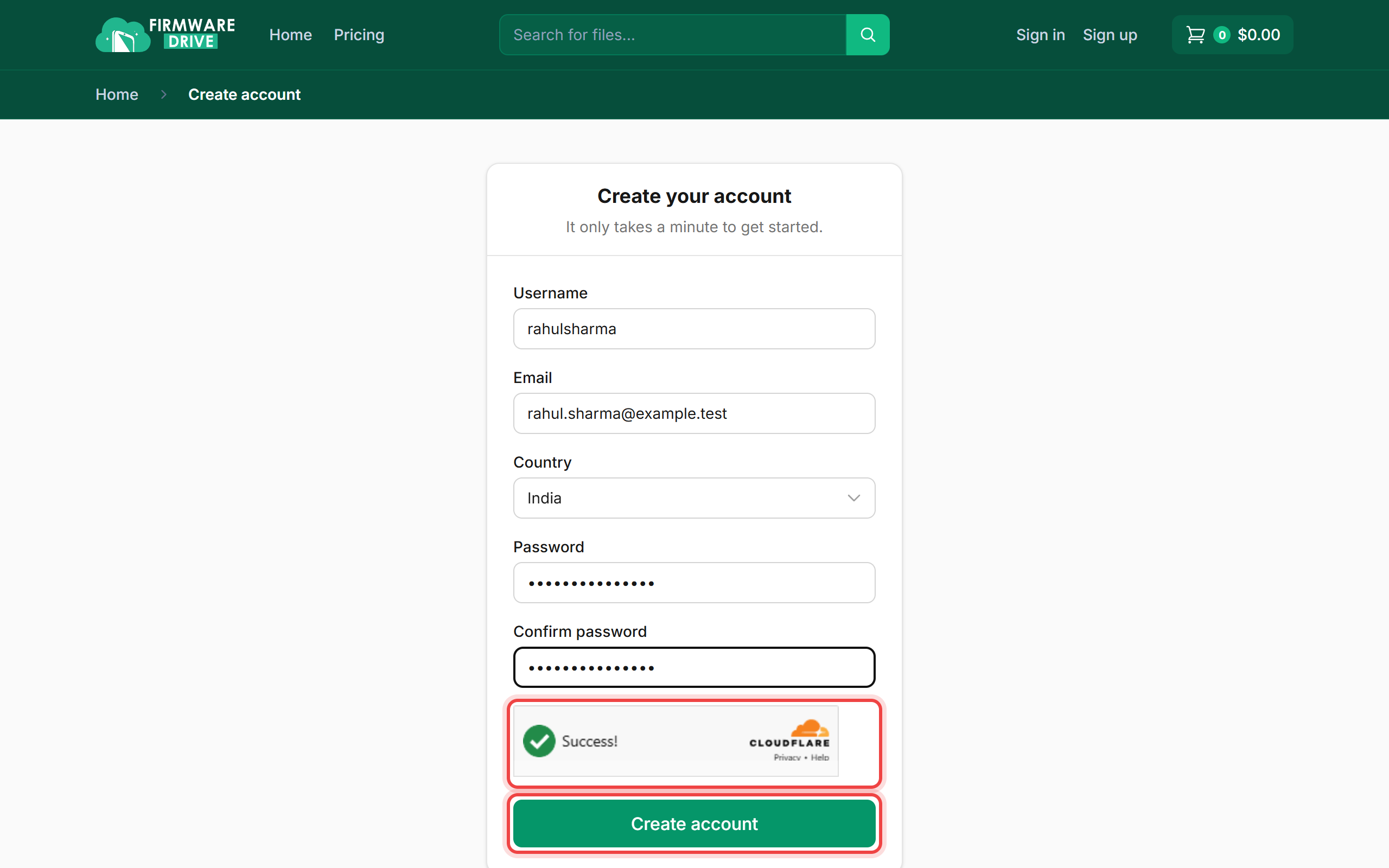
Step 3: Pass the security check and create the account
Wait for the Cloudflare check under the form to show Success!, then click Create account. If the check asks you to tick a box, tick it.
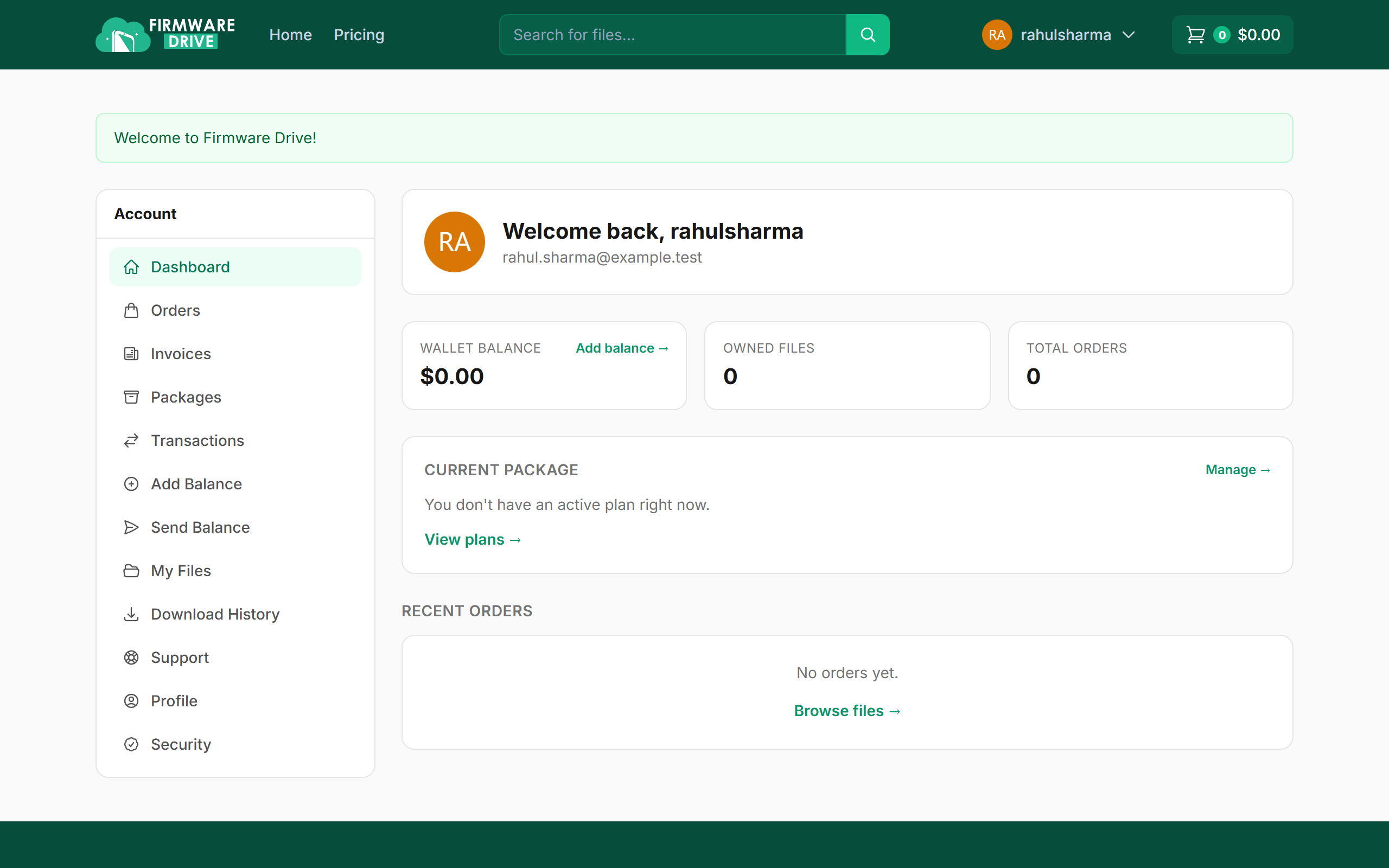
Step 4: You are signed in
Your account is ready and you land on your dashboard with a Welcome to Firmware Drive! message. From here you can see your wallet balance, current package and recent orders.
Good to know
- Already have an account? Use How to Sign In instead.
- If you see "The username has already been taken", choose a different username.
- Next step: buy a download package so you can download files.
More guides: Help & Guides.