
What to Do When a Download Will Not Start
Step-by-step fixes for downloads that do not start, stop halfway or ask for authorization again.
Most download problems come from the browser, the device authorization or the package limits. Work through these checks in order.
Step 1: Use the Start Download button again
On the download page, click Start Download once and wait a few seconds. If nothing happens:
- Allow pop-ups and downloads for firmwaredrive.com in your browser.
- Turn off download-blocking extensions and try again.
- Try a different browser, or copy the link shown above the button into a download manager.
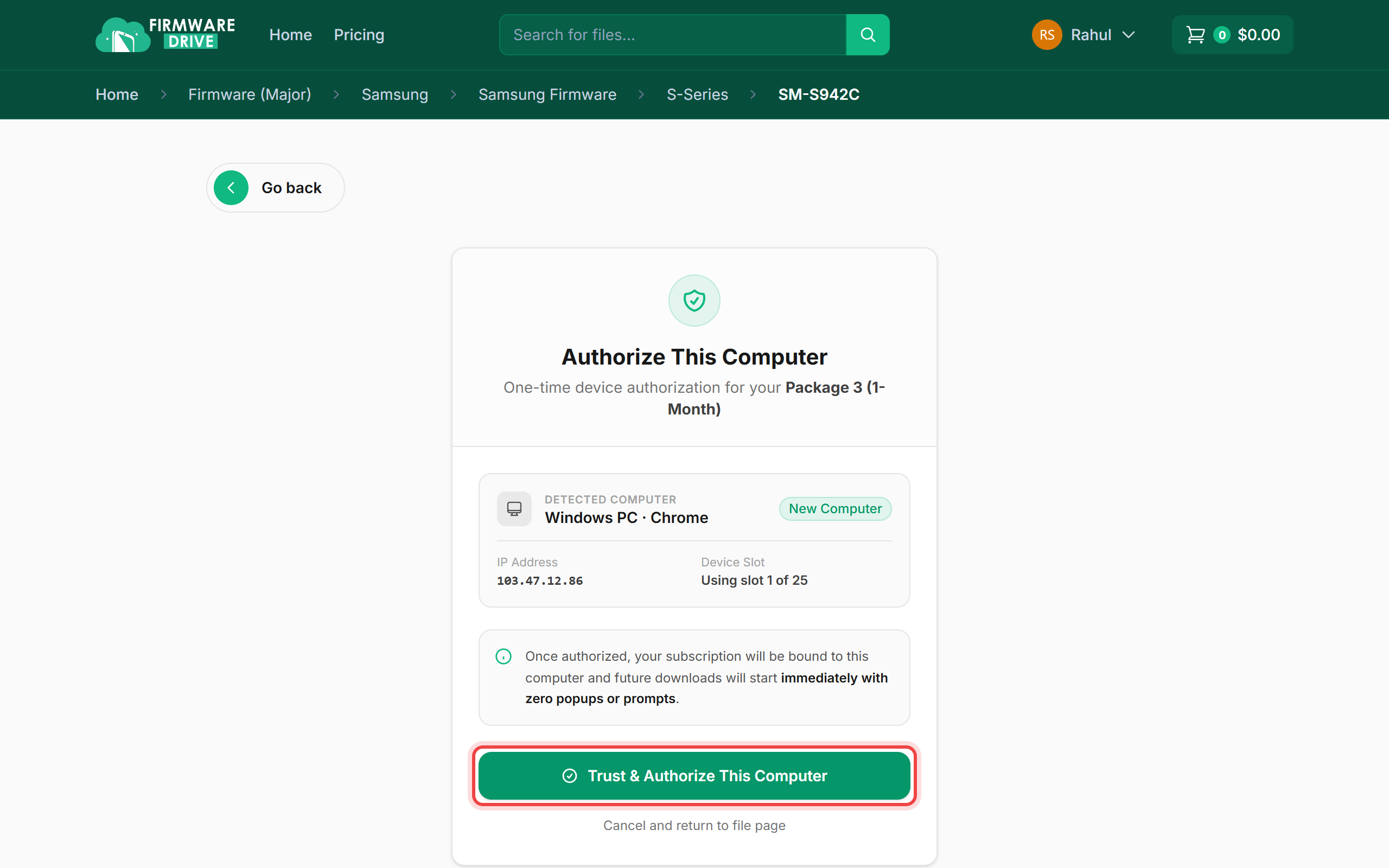
Step 2: Authorize the device if asked
If you see Authorize This Computer, the browser is new to your package. Click Trust & Authorize This Computer. If all device slots are used, free one as shown in How to authorize and manage trusted devices.
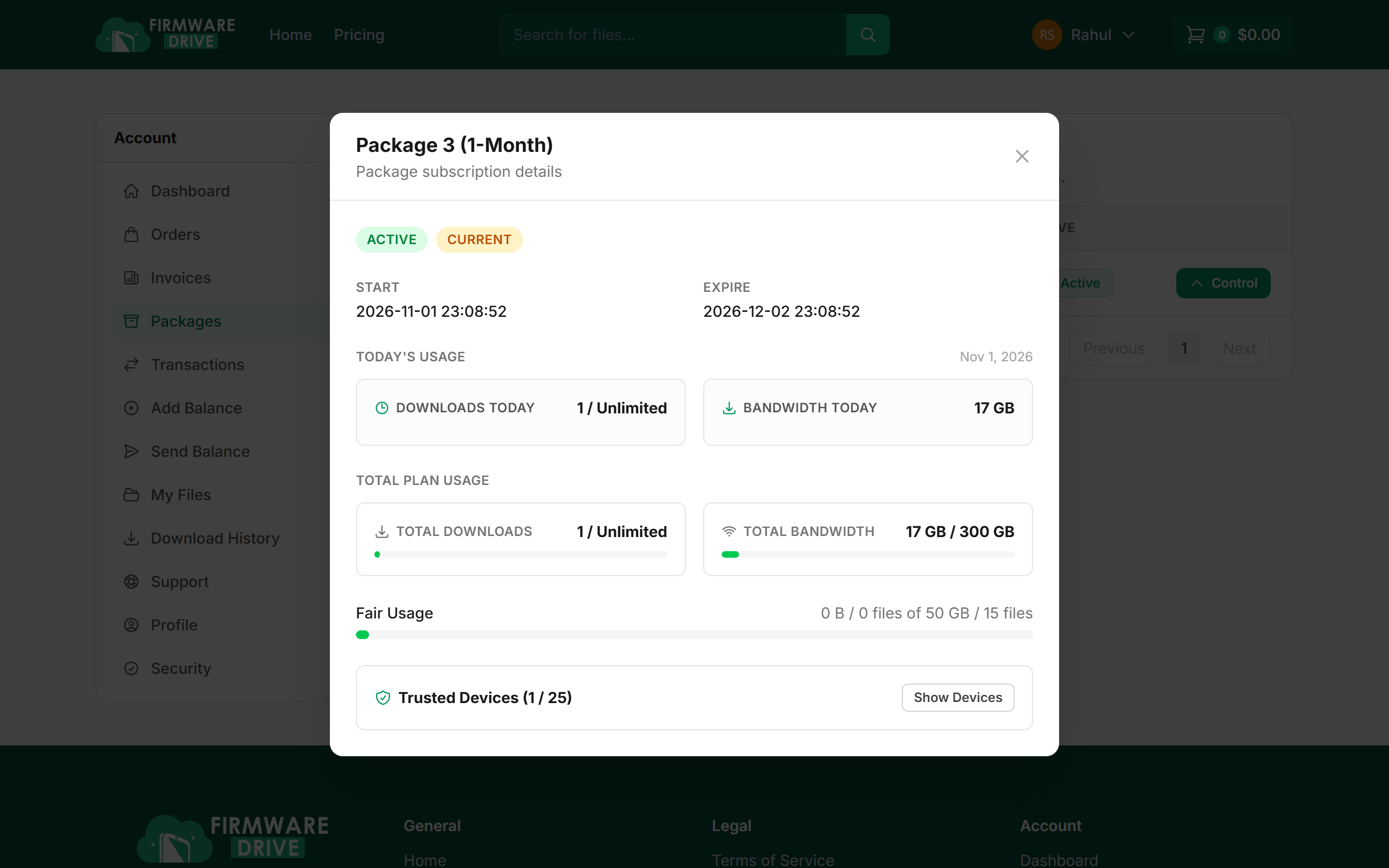
Step 3: Check your package limits
Open Packages and click Control. Make sure the plan is ACTIVE and that your bandwidth and fair usage are not used up. If they are, renew or buy another package.
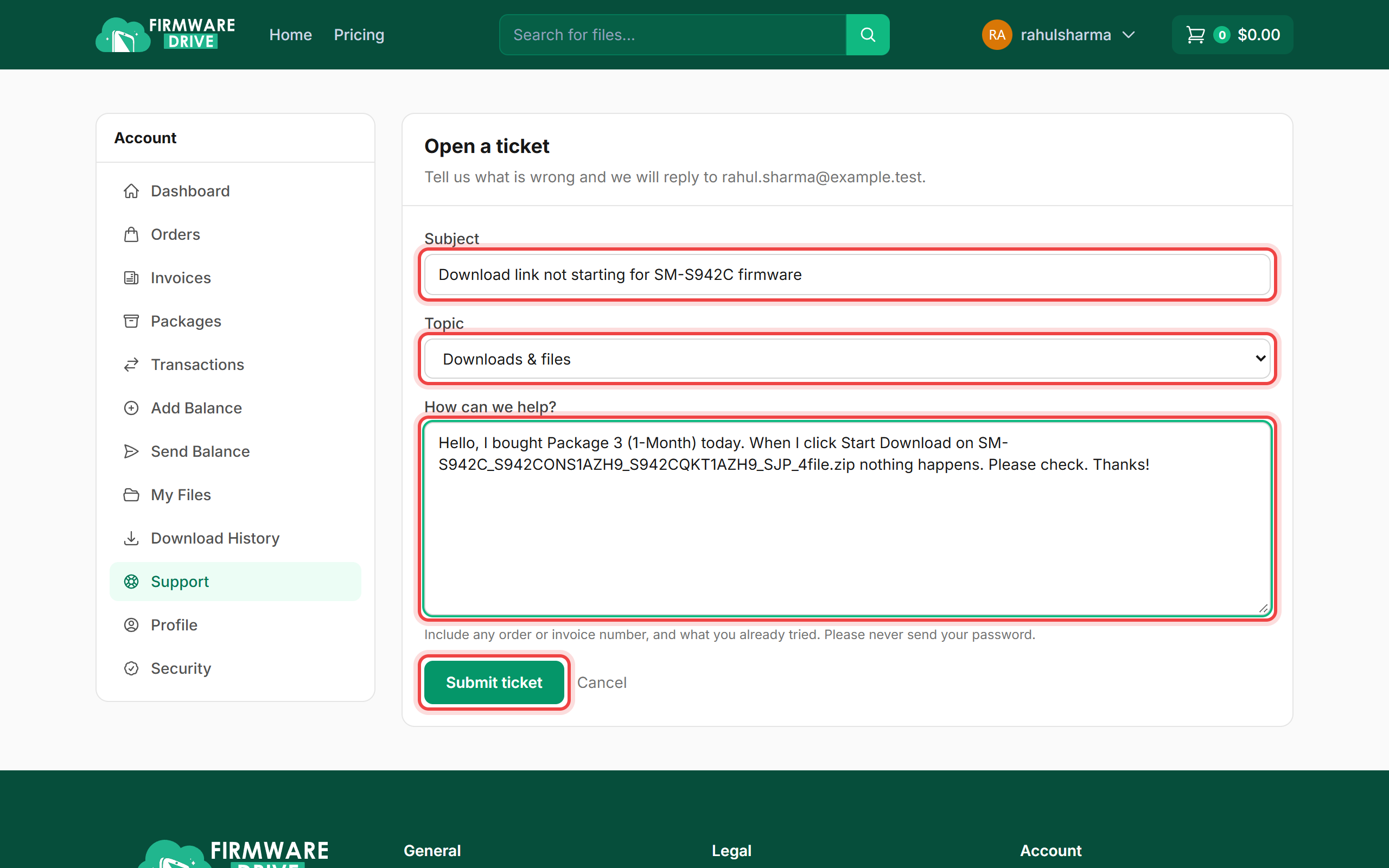
Step 4: Still stuck? Open a ticket
Go to Support, click New ticket, choose Downloads & files and include the file name, what you see on screen and your browser. The team replies by email and on the ticket.
Good to know
- Large files (10 GB and up) can take a long time. Keep the computer awake and use a stable connection.
- If the file downloads but will not open, re-download it. A broken zip is usually an incomplete download.
More guides: Help & Guides.