
How to Authorize and Manage Trusted Devices
What the "Trust & Authorize This Computer" screen means, and how to free a device slot when you change computers.
Each package can be used on a set number of devices (the Login limit on the Pricing page). The first time you download on a new computer or phone, Firmware Drive asks you to authorize it, and it then takes one device slot.
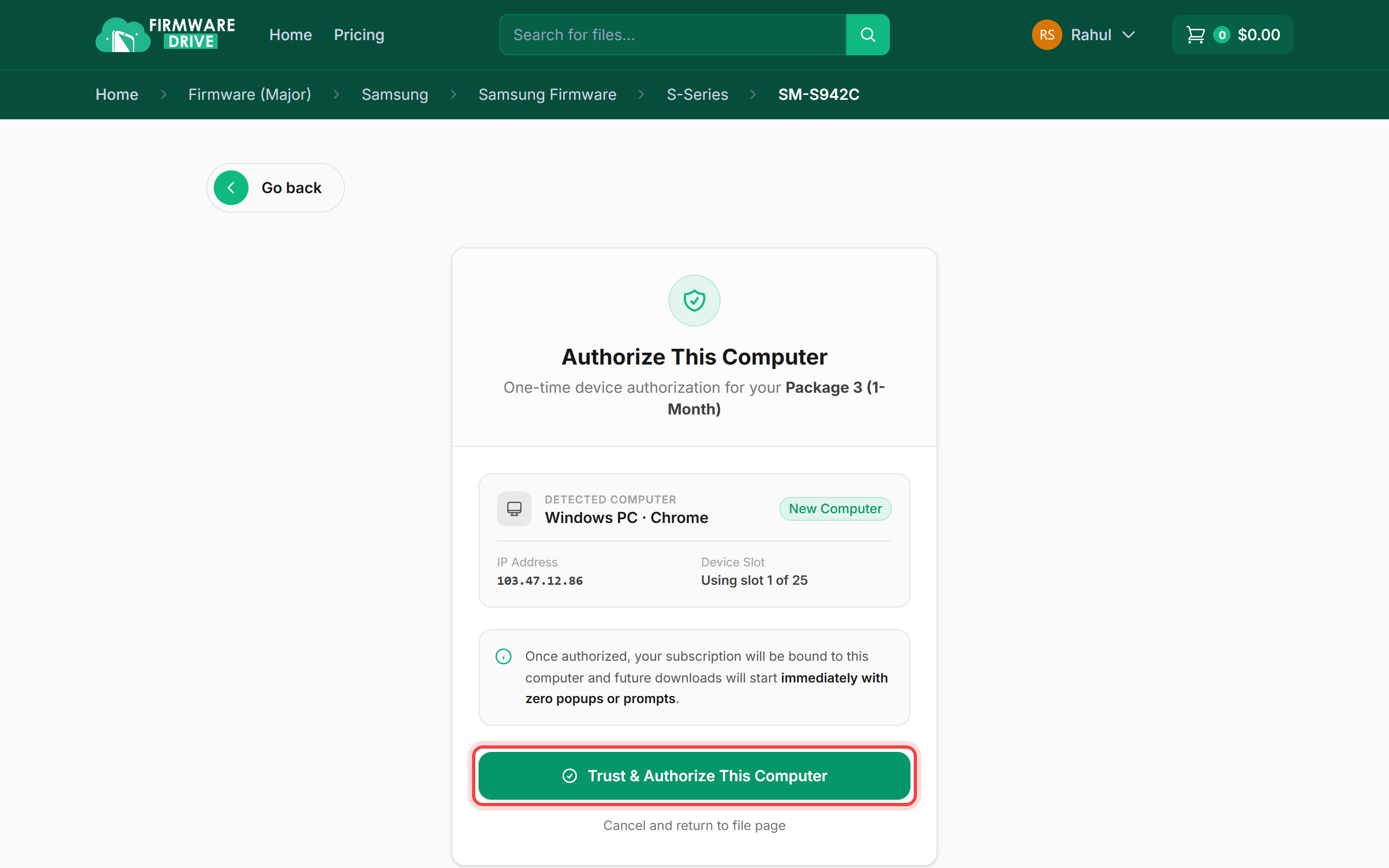
Step 1: Authorize a new computer
Click Download on a file from a device you have not used before. The Authorize This Computer page shows the detected device, its IP address and which slot it will use. Click Trust & Authorize This Computer. Future downloads on it start straight away.
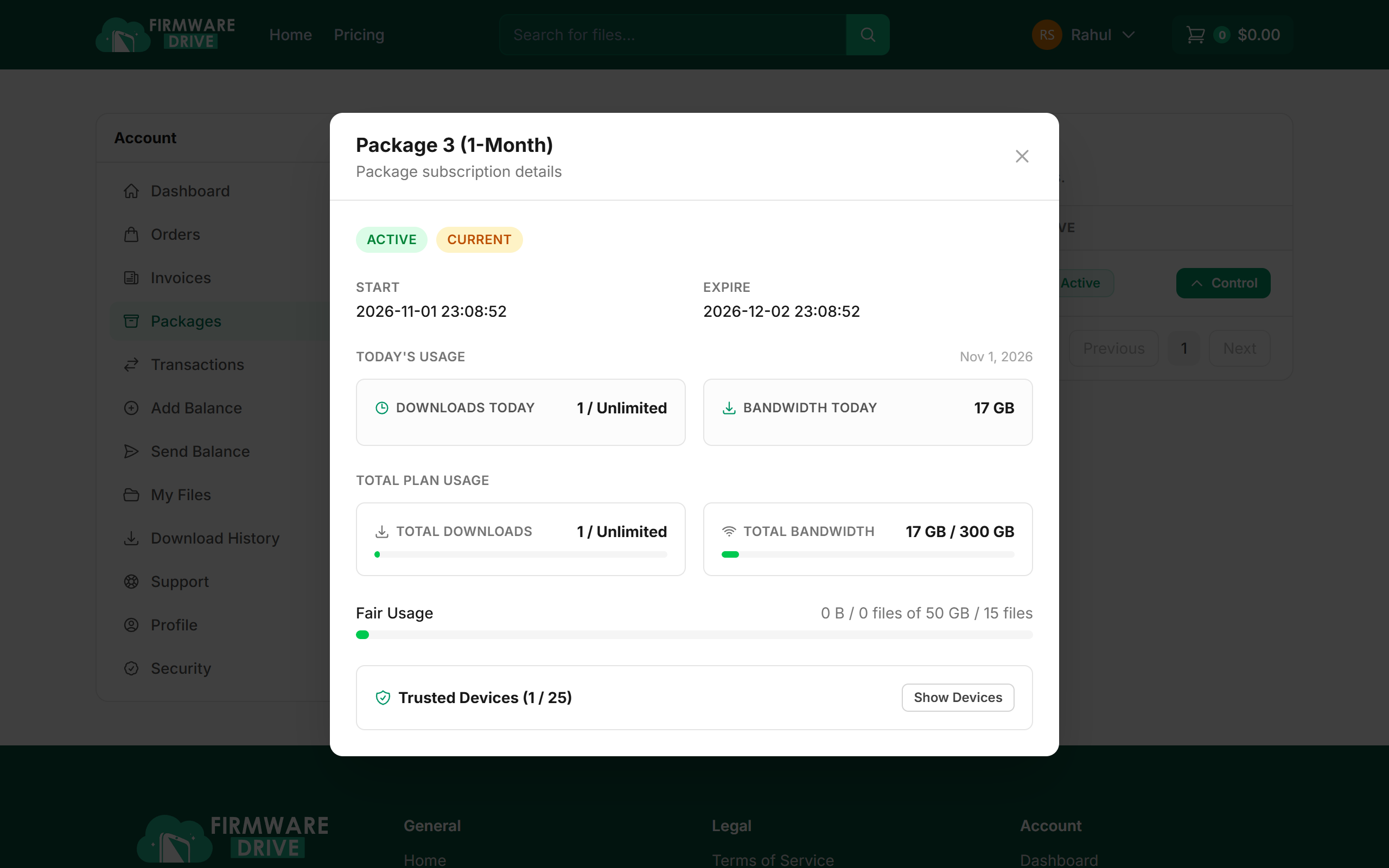
Step 2: See your trusted devices
Open Packages, click Control on your plan, then click Show Devices in the Trusted Devices box.
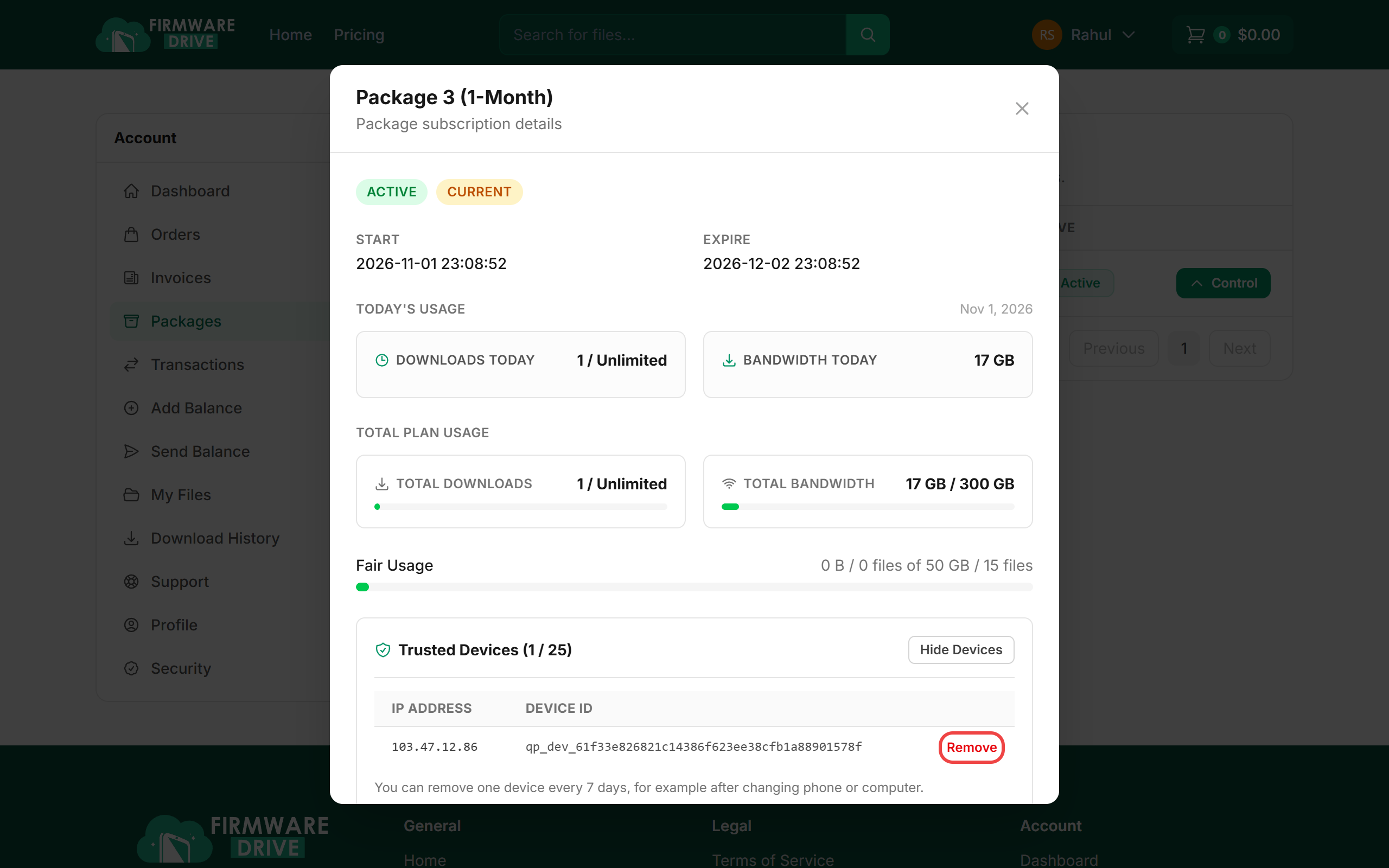
Step 3: Remove an old device
Find the device you no longer use (check the IP address) and click Remove.
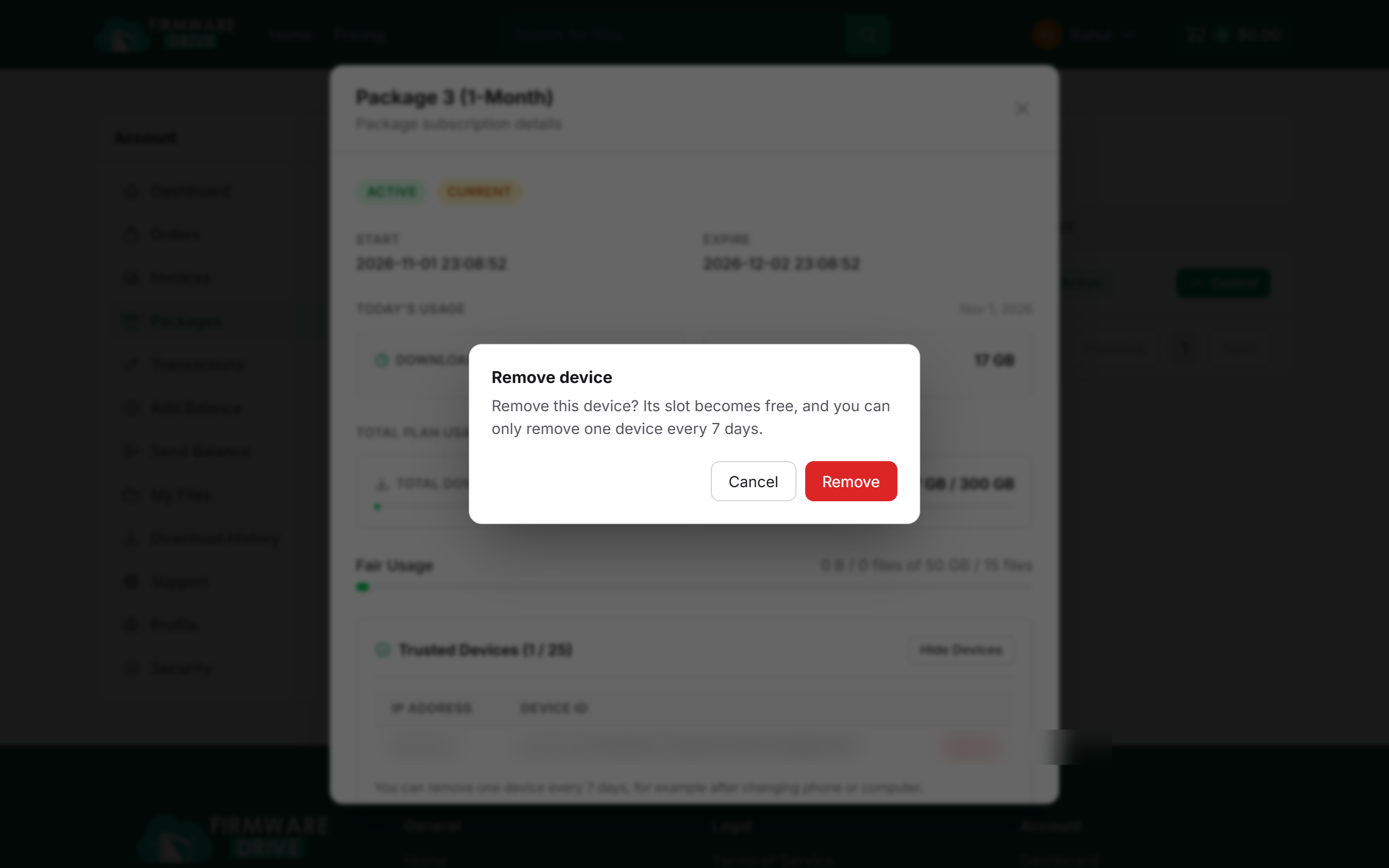
Step 4: Confirm the removal
A Remove device box asks you to confirm. Click Remove (or Cancel to keep the device).
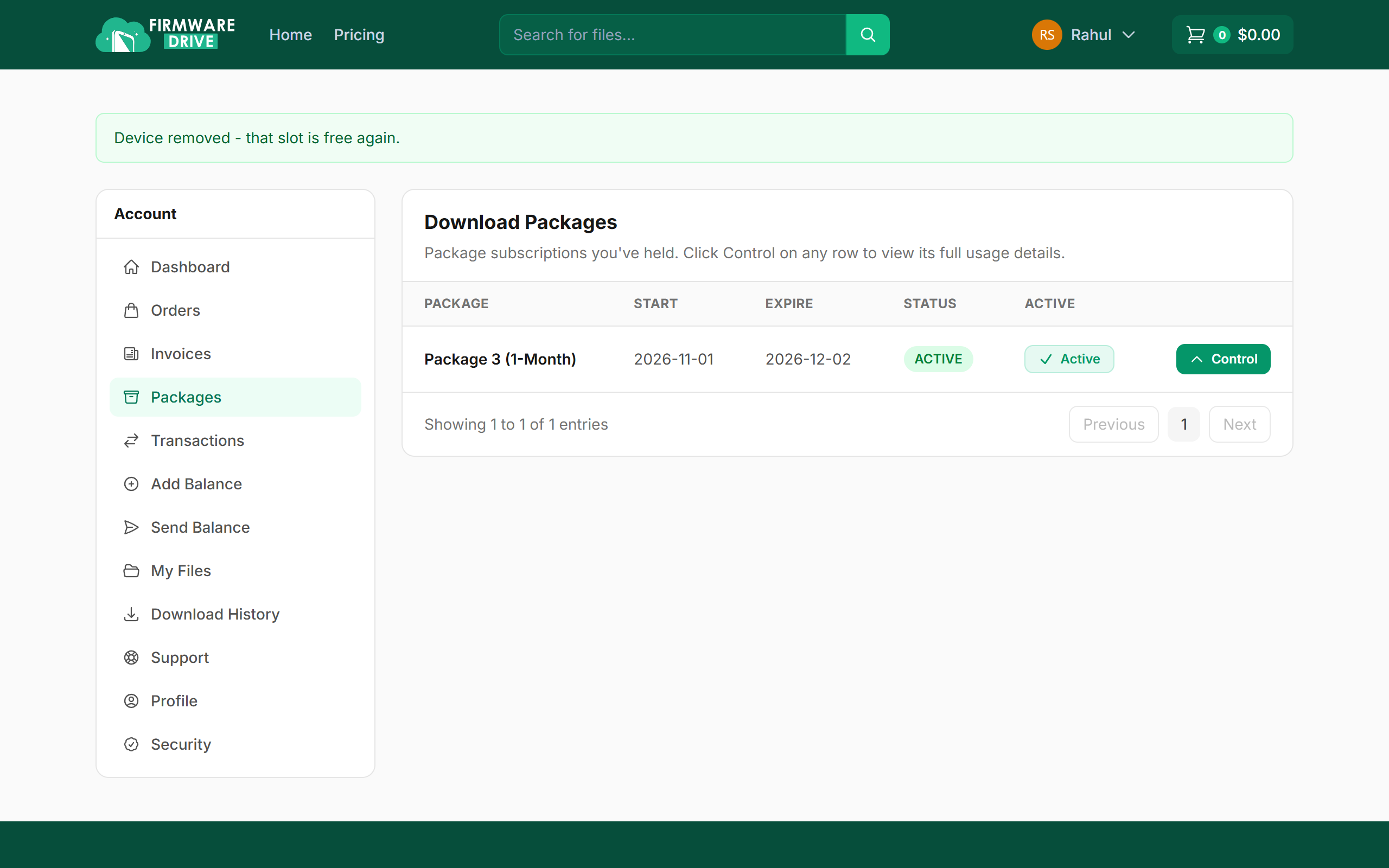
Step 5: The slot is free again
You will see Device removed - that slot is free again. The next new computer or phone you download on can use that slot.
Good to know
- You can remove one device every 7 days, so only remove devices you really replaced.
- Using a different browser on the same computer can count as a new device.
- Out of slots and cannot wait 7 days? Open a support ticket.
More guides: Help & Guides.