
Help & Guides Rajesh Patel Nov 1, 2026 2 views
How to Use Email Codes for Two-Step Sign-In
Turn on email verification codes so every new sign-in also needs a 6-digit code sent to your inbox.
Email codes are the simplest form of two-step sign-in. After you enter your password, Firmware Drive emails you a 6-digit code, and you need that code to finish signing in. Nothing to install.
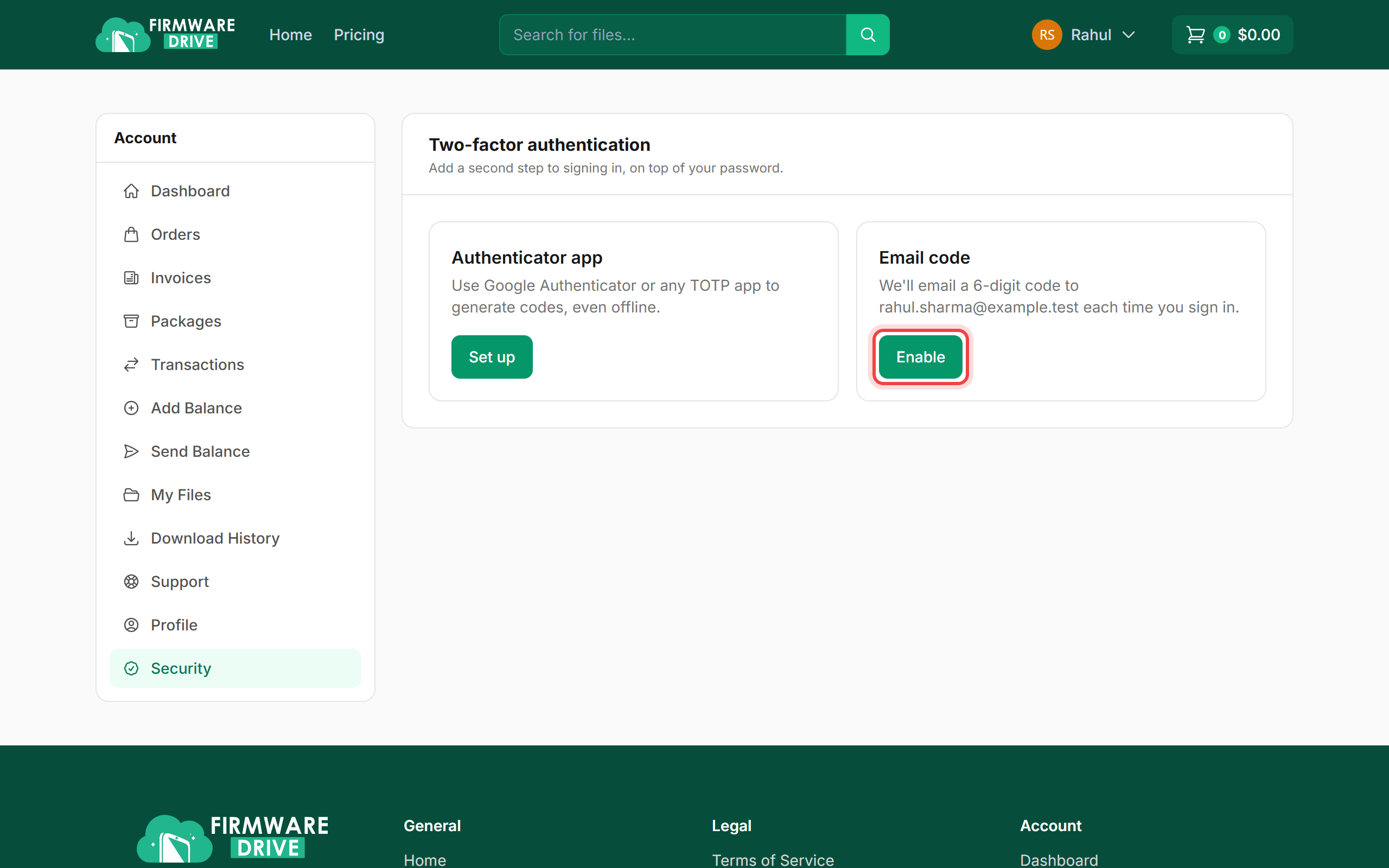
Step 1: Open Security and enable Email code
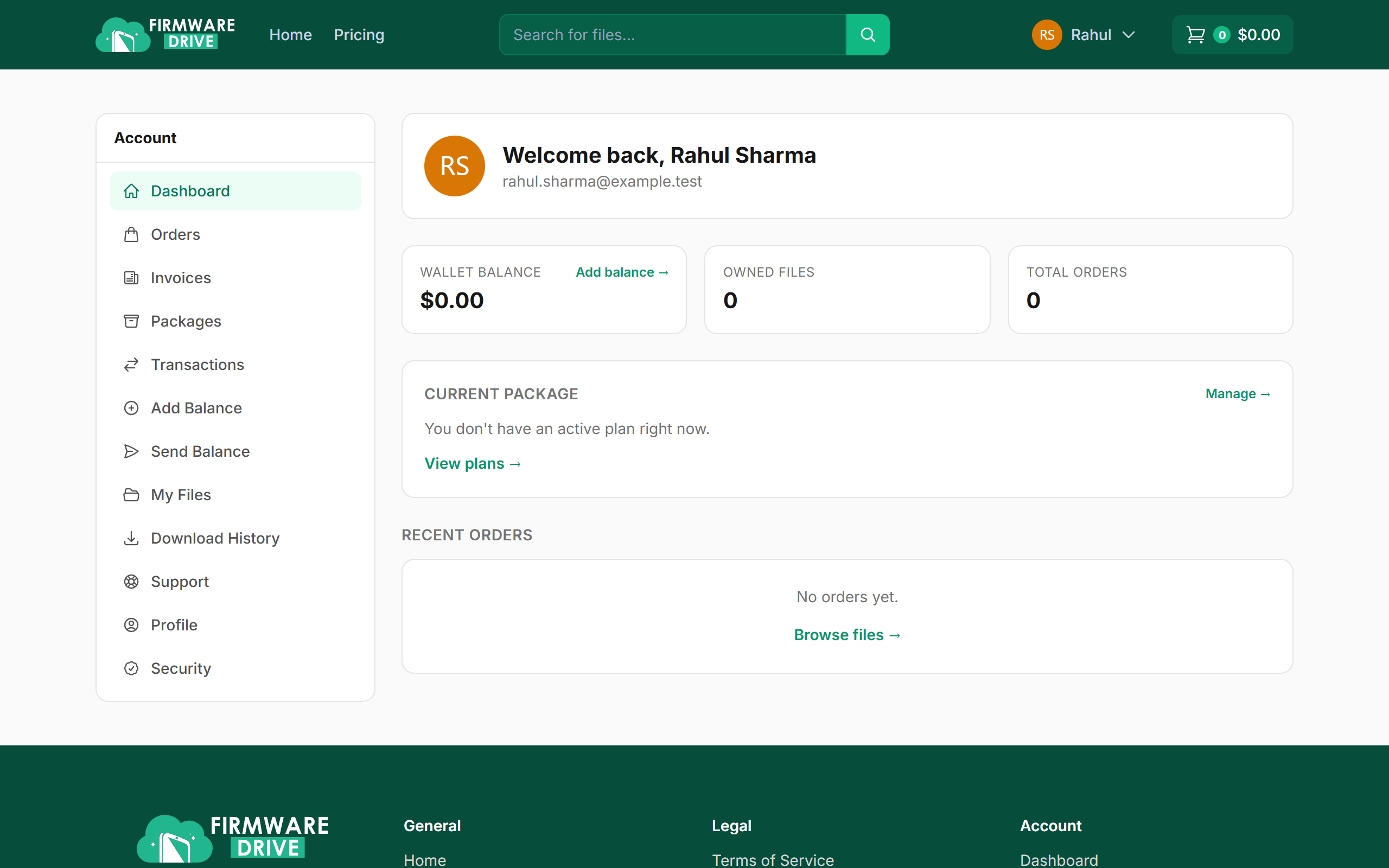
Sign in, open your dashboard and click Security in the left menu. In the Email code box, click Enable.
Step 2: Email codes are now on
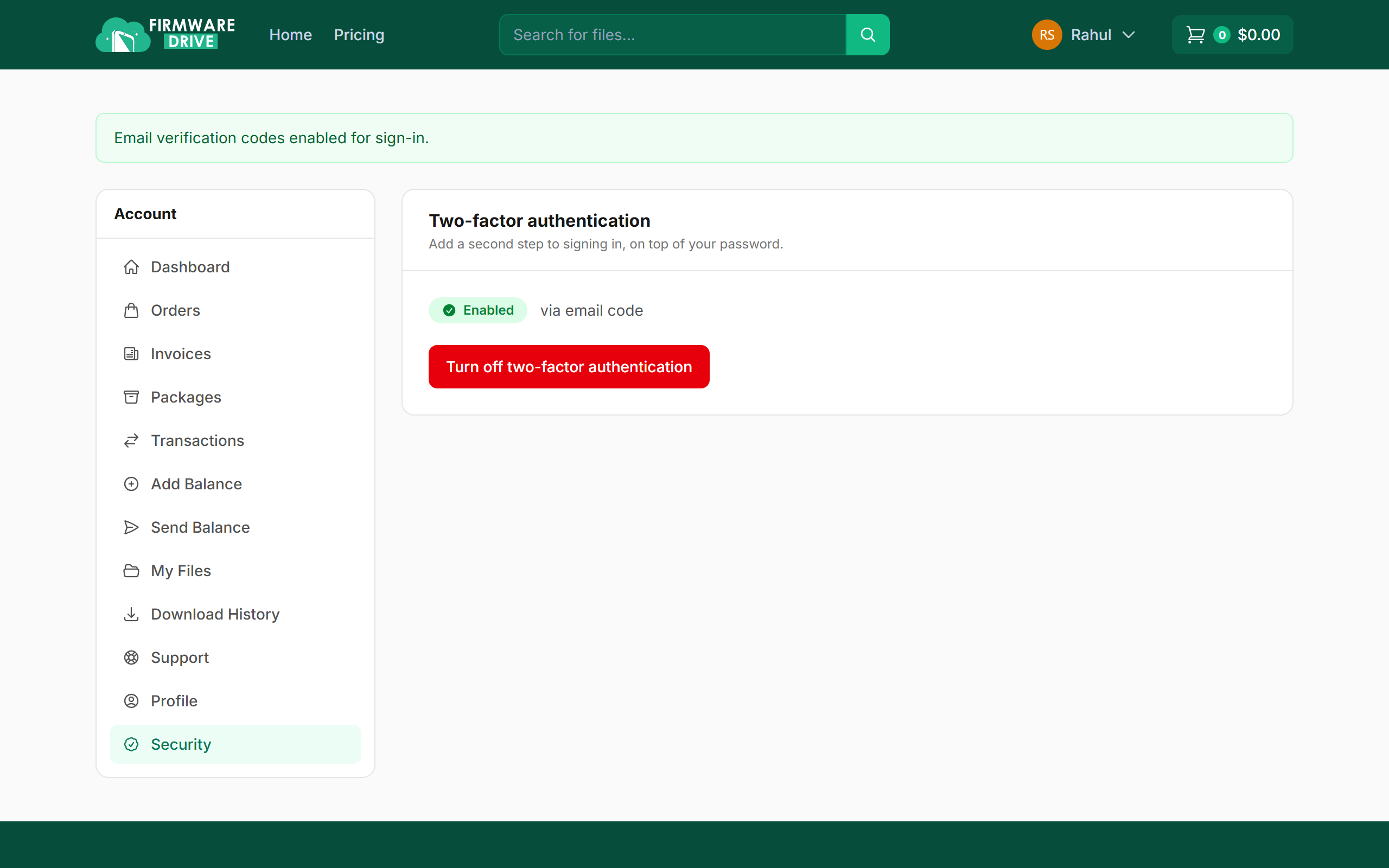
You will see Email verification codes enabled for sign-in. The status shows Enabled via email code.
Step 3: Enter the code at your next sign-in
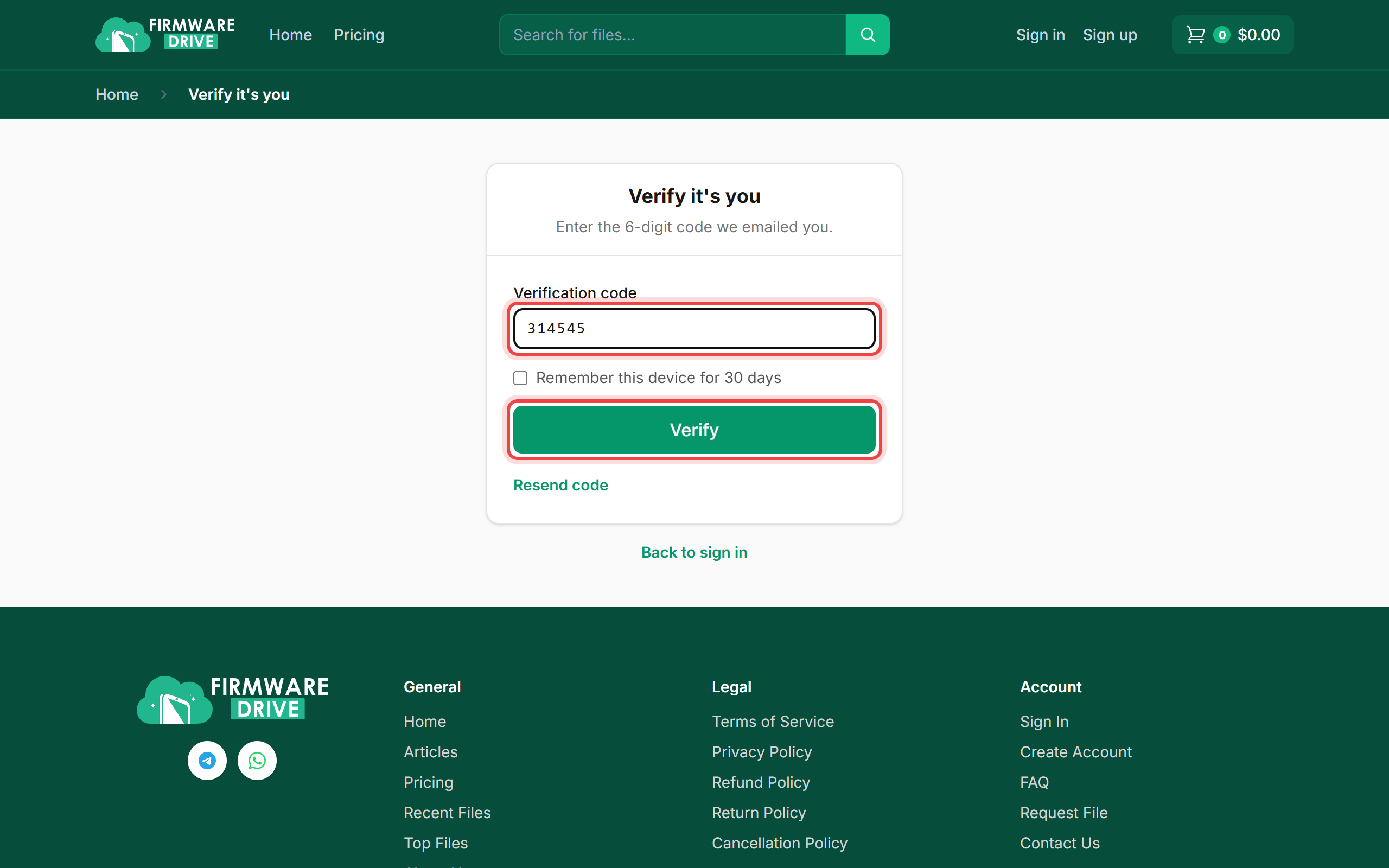
Next time you sign in, enter your username and password as usual. On the Verify it's you page, type the 6-digit code from the email and click Verify.
- Tick Remember this device for 30 days on your own computer to skip the code there for a month.
- No email? Check spam, then click Resend code.
Step 4: You are signed in
After a correct code you land on your dashboard.
Good to know
- Want codes that work without email? Use an authenticator app instead: see How to turn on two-factor authentication.
- To switch it off, open Security, click Turn off two-factor authentication and confirm with your password.
More guides: Help & Guides.