
How to Turn On Two-Factor Authentication
Protect your account with a 6-digit code from Google Authenticator or by email when you sign in.
Two-factor authentication (2FA) asks for a 6-digit code after your password, so nobody can sign in with your password alone. Choose an authenticator app or codes sent by email.
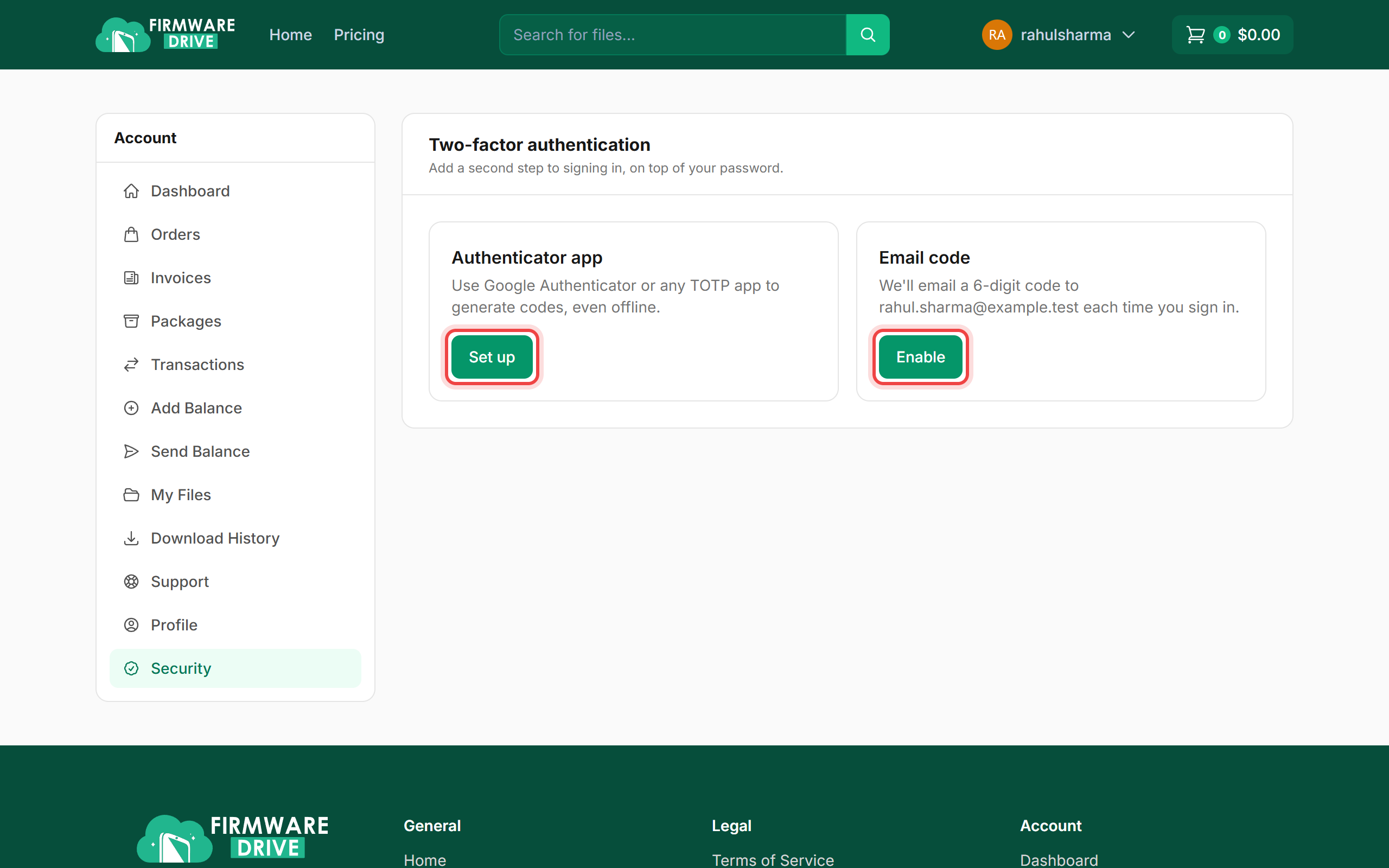
Step 1: Open Security
Sign in and open Account > Security. Click Set up under Authenticator app, or Enable under Email code if you prefer codes by email.
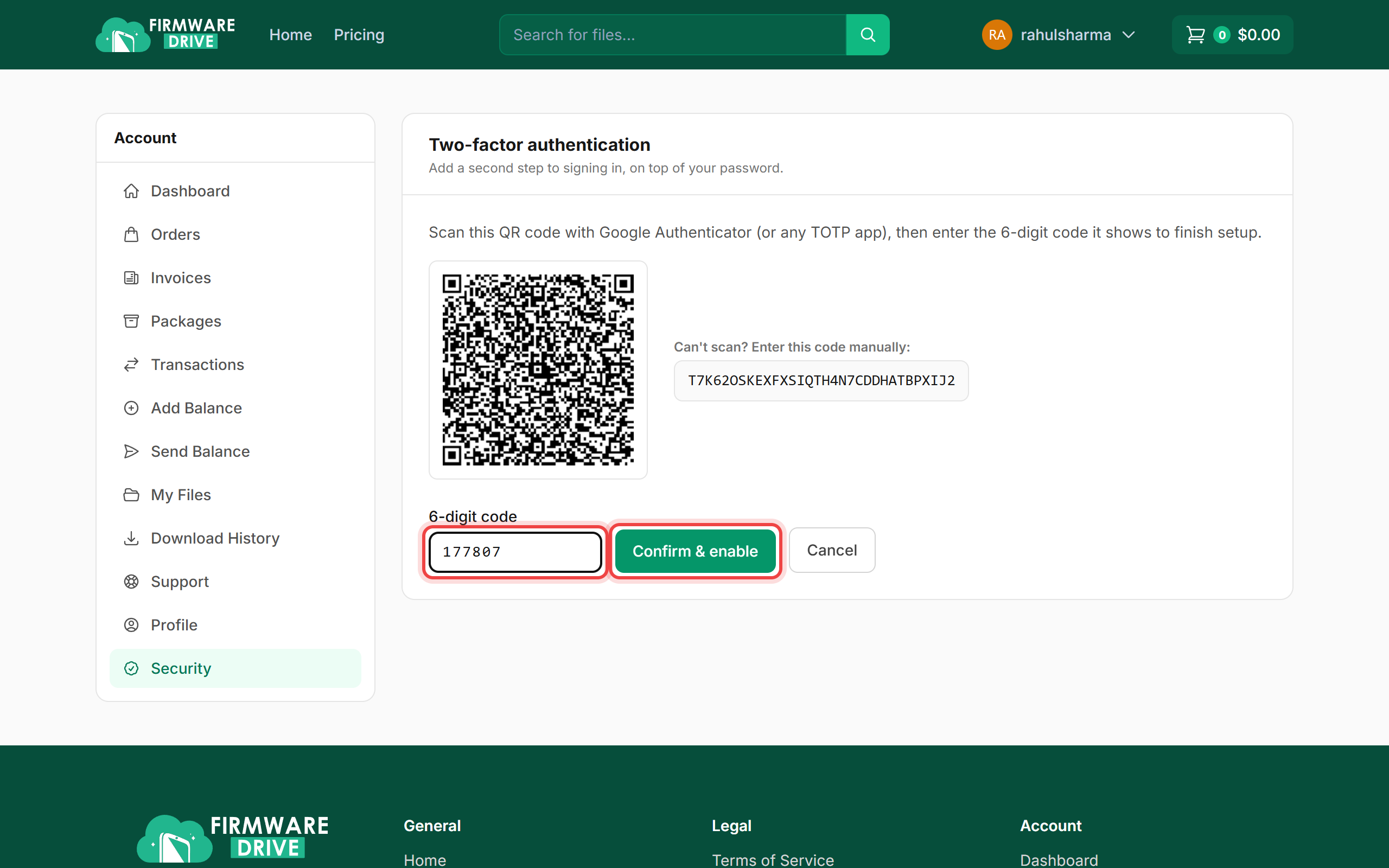
Step 2: Scan the QR code and confirm
Open Google Authenticator (or any TOTP app such as Microsoft Authenticator or Authy), tap + and scan the QR code. Cannot scan? Type the code shown under Can't scan? into the app. Enter the 6-digit code the app shows and click Confirm & enable.
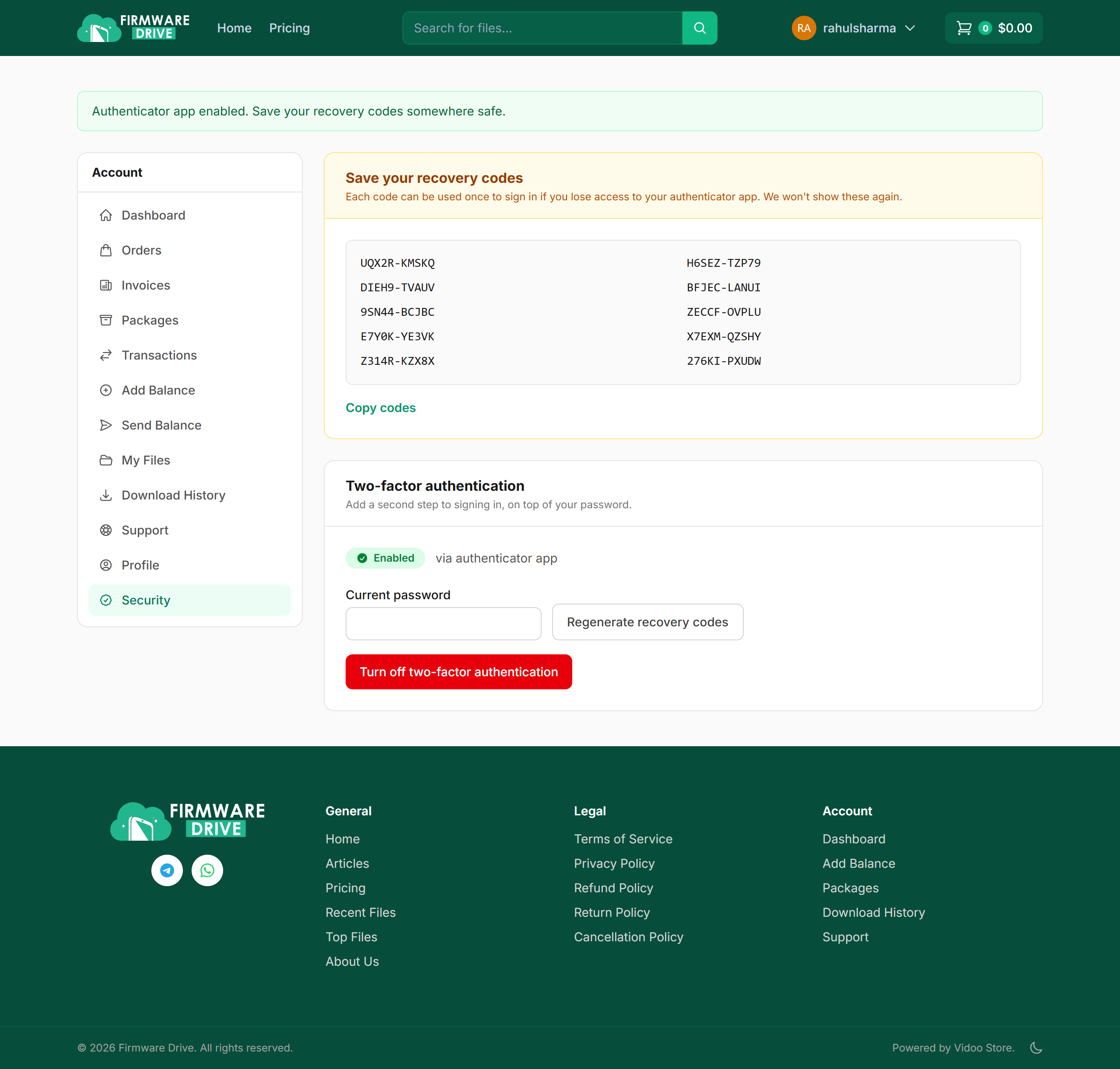
Step 3: Save your recovery codes
2FA is now on. Save the recovery codes somewhere safe (click Copy codes). Each code works once if you lose your phone. They are shown only this one time.
Good to know
- To turn 2FA off or get new recovery codes, enter your current password on the Security page and use Turn off two-factor authentication or Regenerate recovery codes.
- Keep your phone time set automatically. A wrong clock makes authenticator codes fail.
More guides: Help & Guides.