
How to Update Your Profile and Change Your Password
Change your display name, phone number, country or password from the Profile page in a few clicks.
Your profile holds the name, phone number and country shown on your orders and invoices. You can also set a new password on the same page. Your email address is fixed to your account, so if it needs to change, open a support ticket.
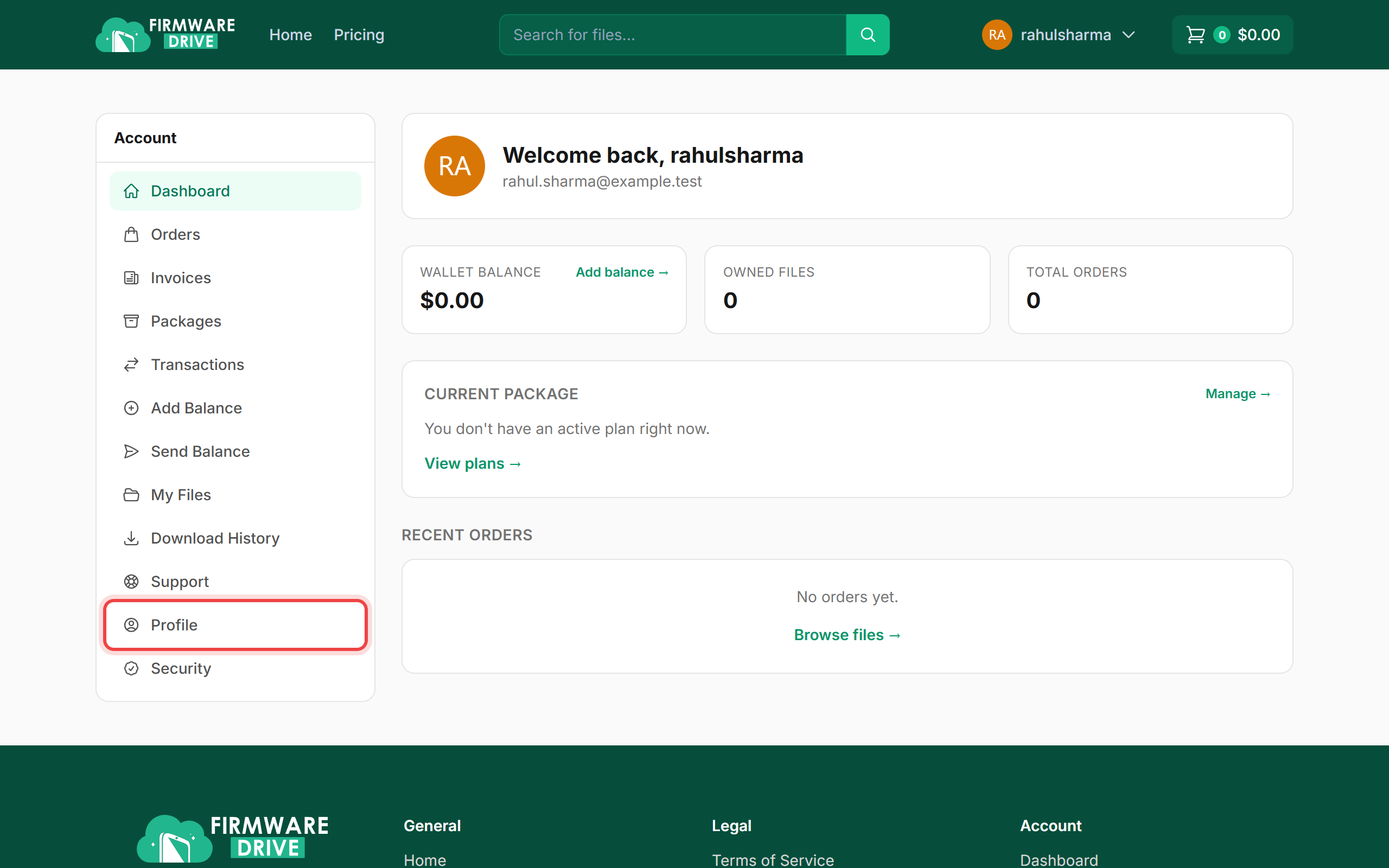
Step 1: Open Profile
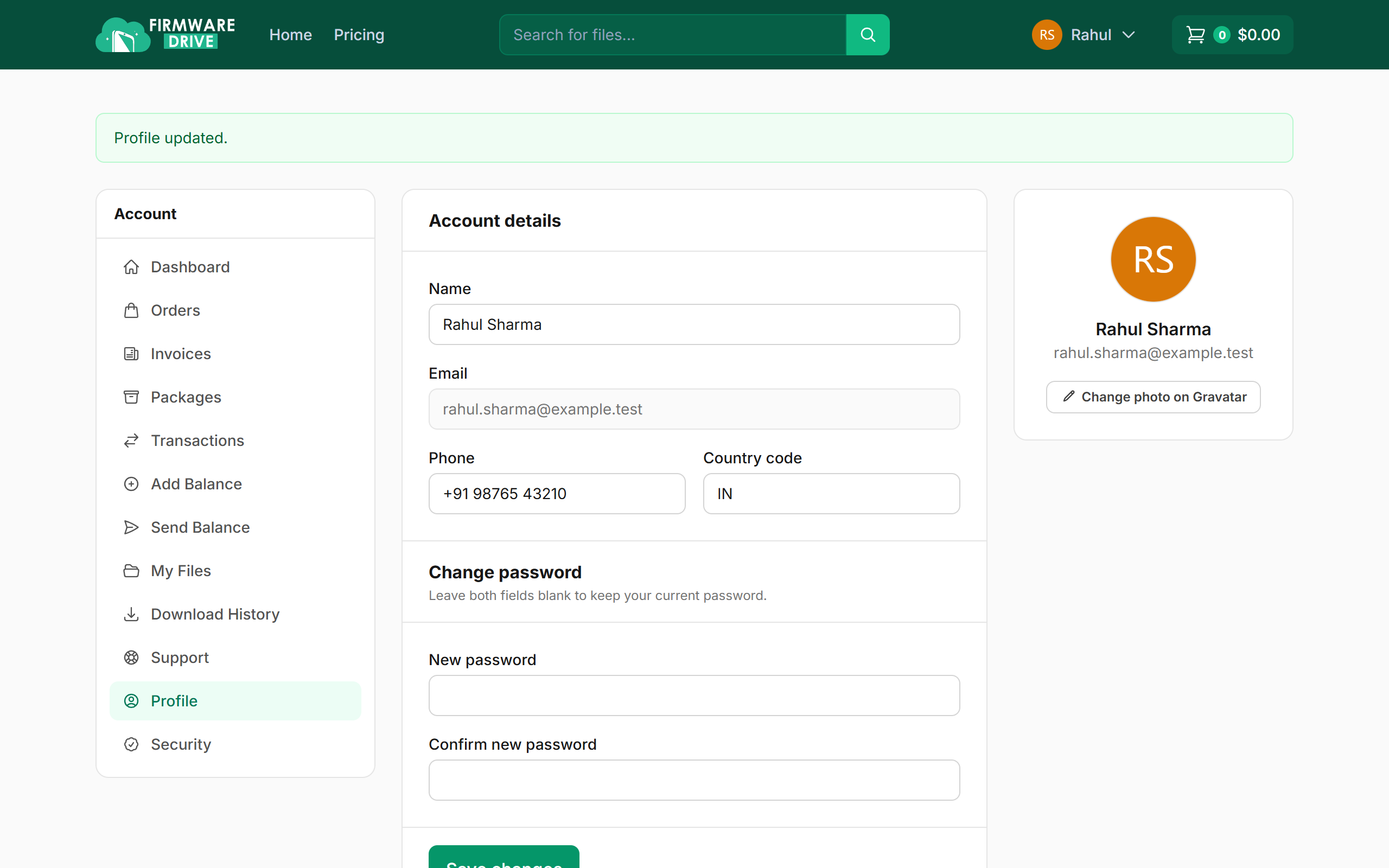
Sign in and open your account dashboard. In the left menu, click Profile.
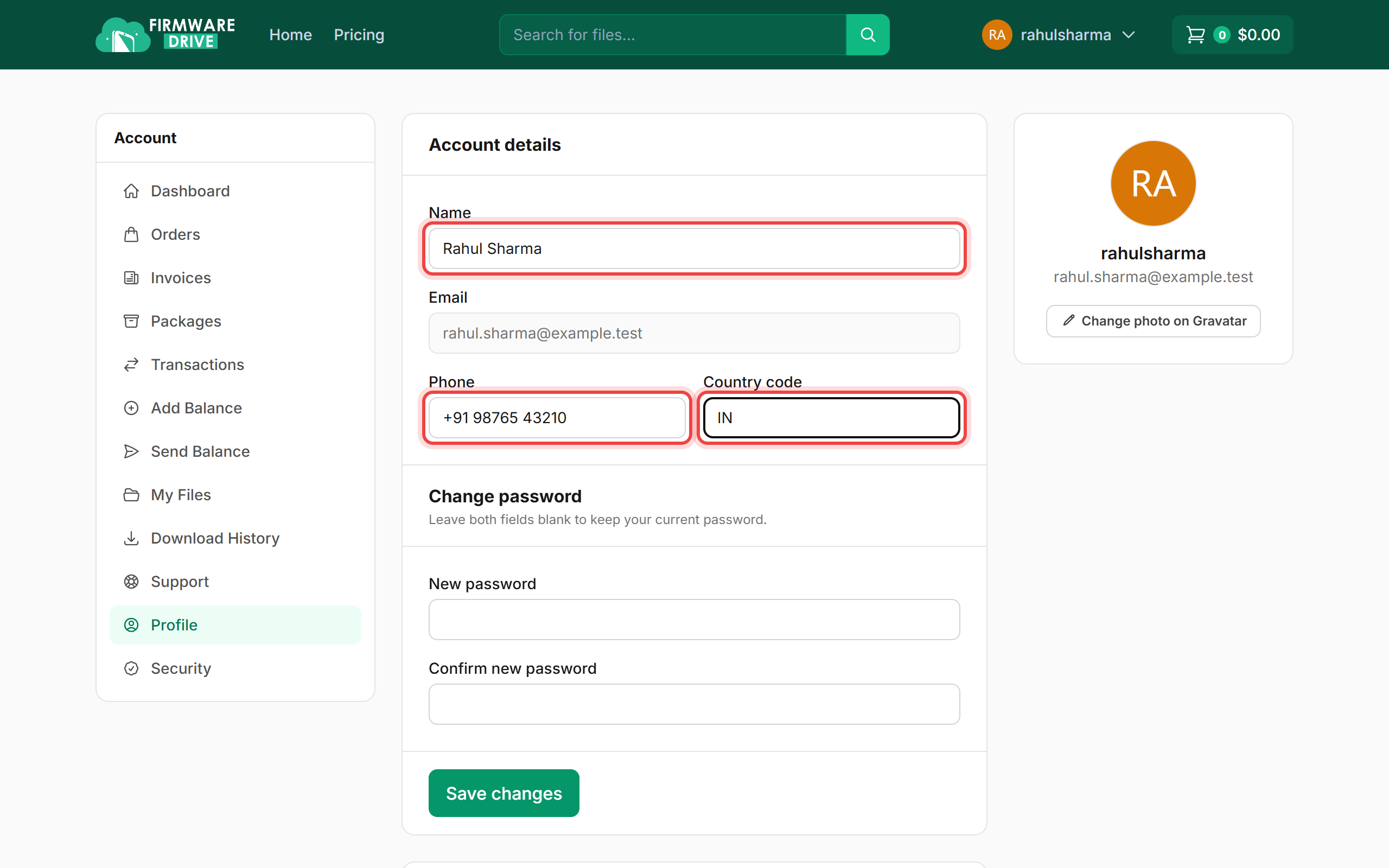
Step 2: Edit your details
Under Account details, update your Name, Phone and two-letter Country code (for example IN or US).
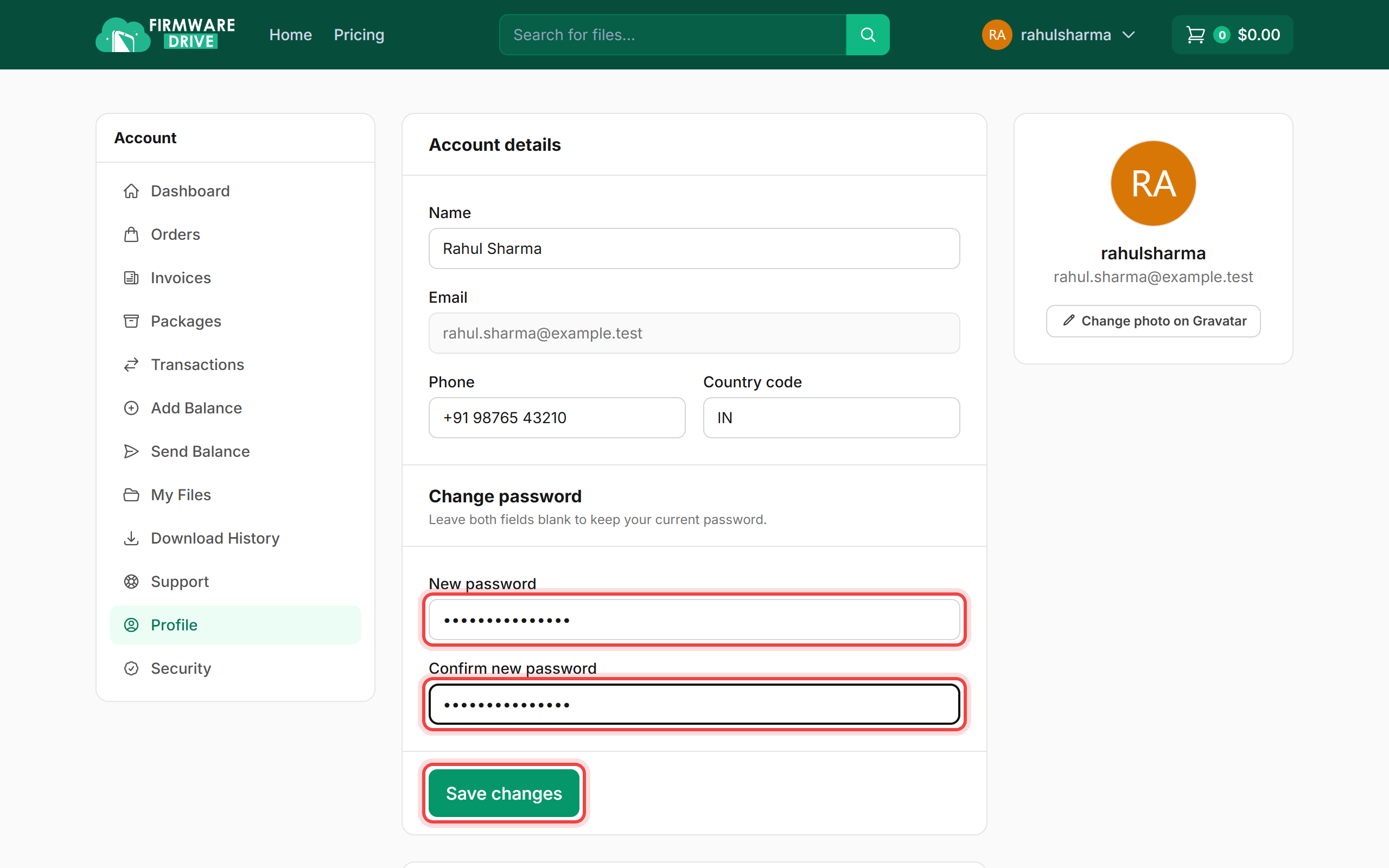
Step 3: Set a new password (optional)
To change your password, type the new one in New password and again in Confirm new password. Leave both fields blank to keep your current password. Click Save changes.
Step 4: Check the confirmation
A green Profile updated. message appears and your new name shows in the top menu. Use your new password the next time you sign in.
Good to know
- Your profile photo comes from Gravatar. Click Change photo on Gravatar to set one for your email address.
- Forgot your current password and cannot sign in? Use How to reset a forgotten password.
- Pick a password you do not use on any other site.
More guides: Help & Guides.