

How to Flash Firmware With Odin, SP Flash Tool or Mi Flash
A beginner's guide to flashing a downloaded stock ROM on Samsung, MediaTek and Xiaomi phones.
Once you have the right firmware, you need a flashing tool on a Windows PC. Which tool depends on the phone: Odin for Samsung, SP Flash Tool for MediaTek phones, and Mi Flash for Xiaomi, Redmi and Poco. Flashing usually erases the phone, so back up first.
Step 1: Download the firmware for your exact model
Find your exact model (see How to browse firmware by brand and model) and download the file. When it finishes, extract the zip to a short folder path such as C:\firmware.
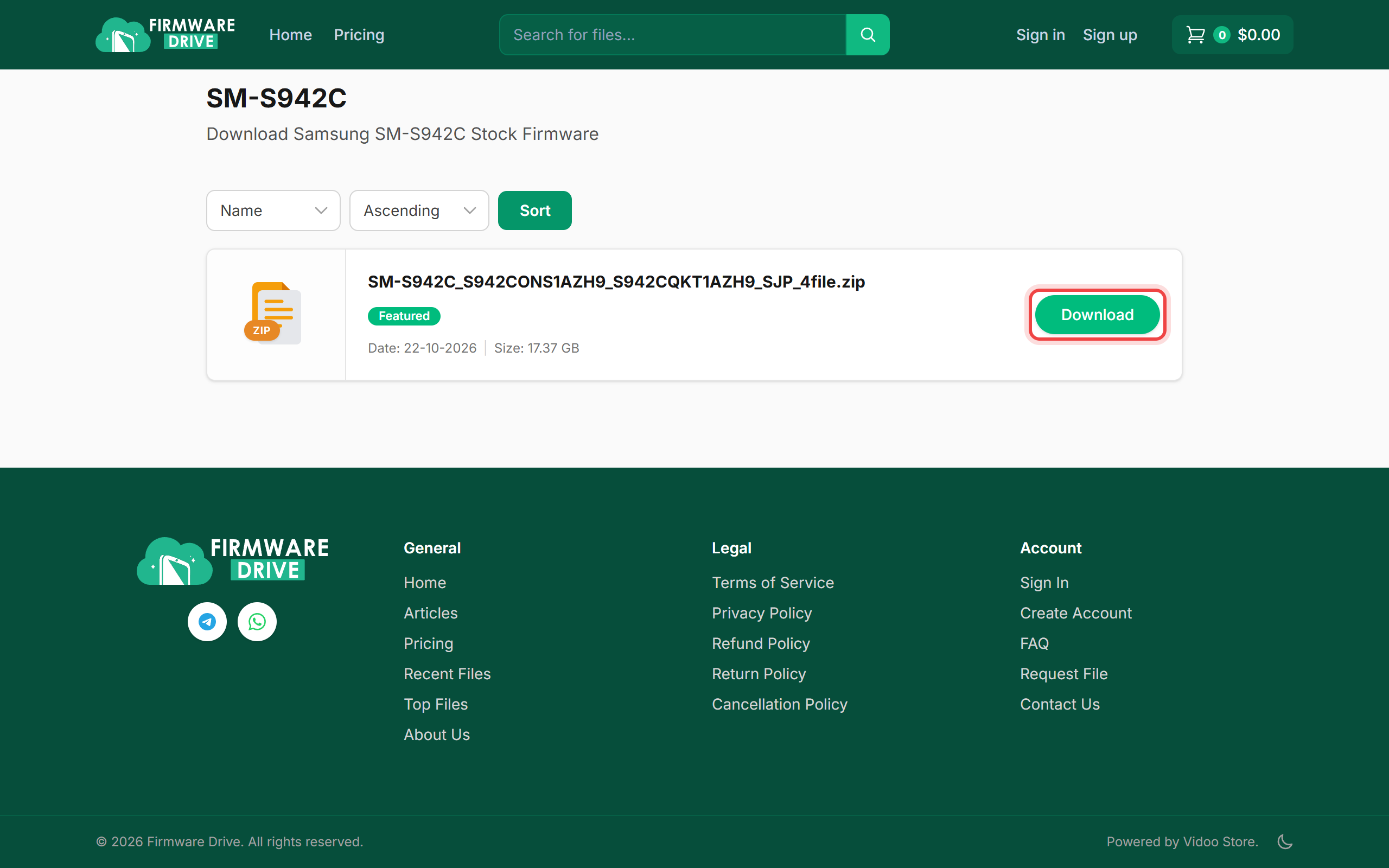
Step 2: Prepare the phone and PC
Before flashing:
- Charge the phone to at least 50%.
- Back up photos, contacts and anything else you need.
- Install the phone's USB driver on the PC (Samsung USB Driver, MediaTek VCOM driver or Xiaomi USB driver).
- Use the original or a good-quality USB cable, plugged directly into the PC.
Step 3: Samsung: flash with Odin
The Samsung firmware zip contains files that start with BL, AP, CP and CSC.
- Open Odin as administrator.
- Turn the phone off. Hold Volume Up + Volume Down and plug in the USB cable, then press Volume Up to enter Download mode. Odin shows a blue ID:COM box.
- Load each file in its button: BL, AP, CP and CSC. If the zip includes a HOME_CSC file, use it instead of CSC to try to keep your data.
- Leave Options at the defaults (do not tick Re-Partition) and click Start.
- Wait for PASS!. The phone reboots on its own. The first boot can take 10 minutes.
Step 4: MediaTek: flash with SP Flash Tool
MediaTek firmware includes a file named like MT6765_Android_scatter.txt.
- Open
flash_tool.exe. Leave the Download-Agent at its default. - In Scatter-loading File, choose the scatter .txt file from the extracted folder.
- Keep the mode on Download Only. Avoid Format All + Download, which can erase the phone's IMEI and calibration data.
- Click Download, then connect the phone while it is switched off (hold Volume Down or Volume Up while plugging in if it is not detected).
- Wait for the green Download OK tick, unplug and power on.
Step 5: Xiaomi: flash with Mi Flash
You need the fastboot ROM (a .tgz file, extracted twice) and an unlocked bootloader.
- Turn the phone off, then hold Volume Down + Power to enter Fastboot mode and connect it to the PC.
- Open Mi Flash, click Select and choose the extracted ROM folder (the one with
flash_all.bat). - Click Refresh so the phone appears in the list.
- At the bottom choose clean all. Do not choose clean all and lock unless you are sure the ROM matches the phone's region.
- Click Flash and wait for success.
Good to know
- Never unplug the phone while flashing.
- If the phone gets stuck on the logo after flashing, boot into recovery and choose Wipe data / Factory reset.
- Not sure which file is right? Open a support ticket with your model number before flashing.
More guides: Help & Guides.