

How to Browse Firmware by Brand and Model
Find files by clicking through folders: category, brand, series and model.
If you are not sure of the exact file name, browse the folders instead of searching. Files are grouped by category, then brand, then series and model. This example finds a Samsung Galaxy SM-S942C firmware.
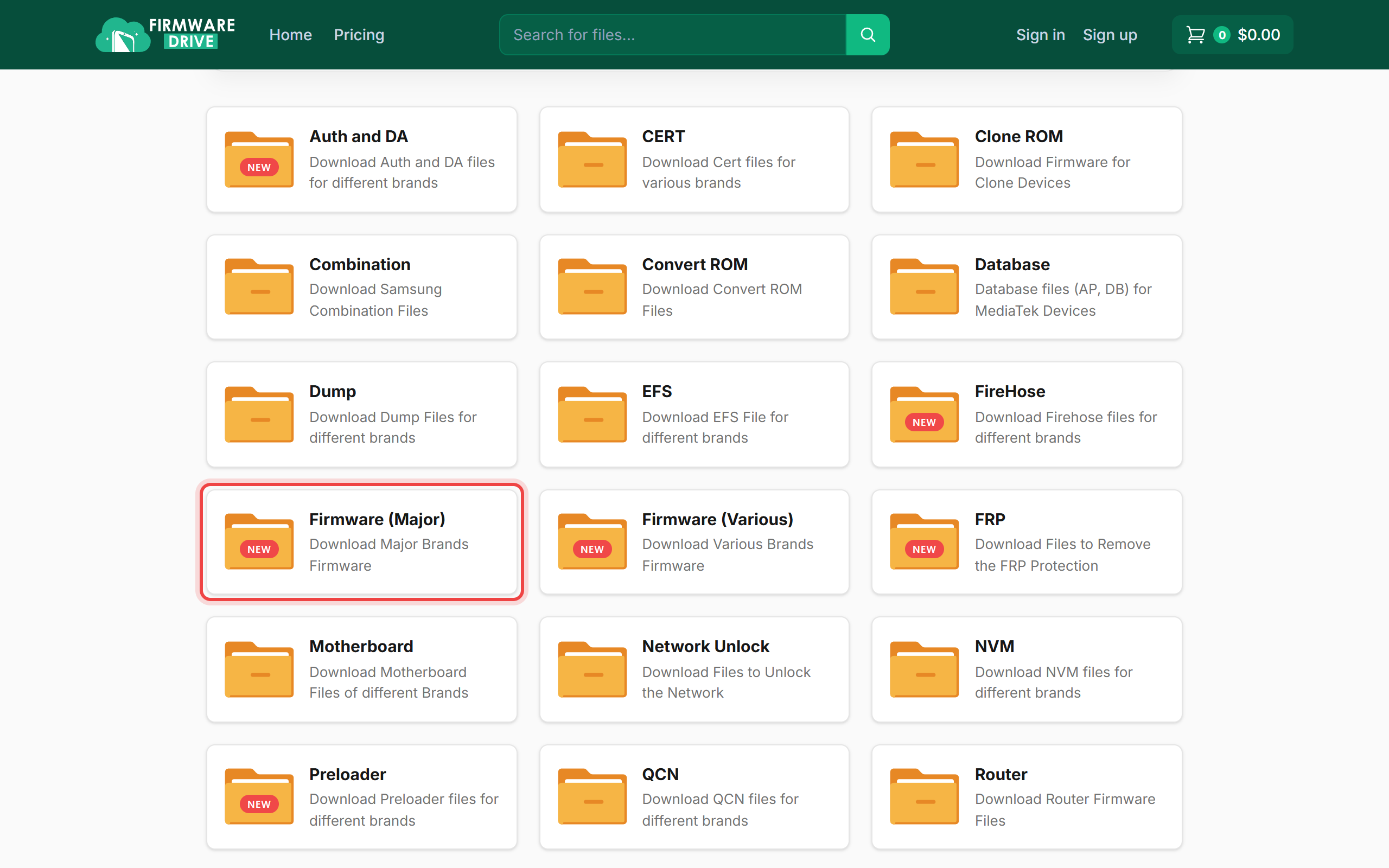
Step 1: Pick a category on the home page
Scroll down the home page to the folder grid and open the category you need, for example Firmware (Major) for stock ROMs. Other folders hold Combination, FRP, EFS, QCN and more.
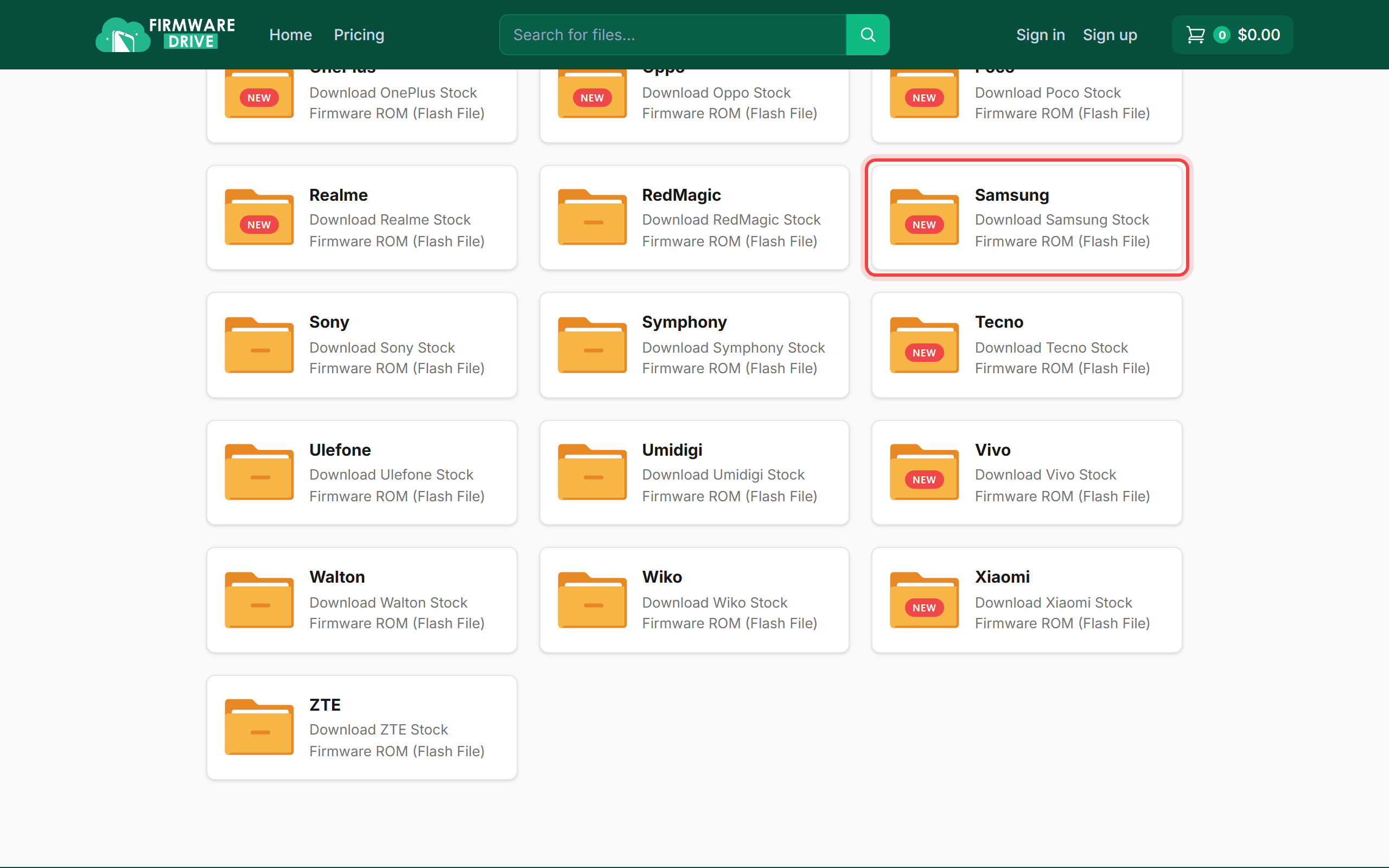
Step 2: Open the brand
Brands are listed alphabetically. Click your phone's brand, here Samsung.
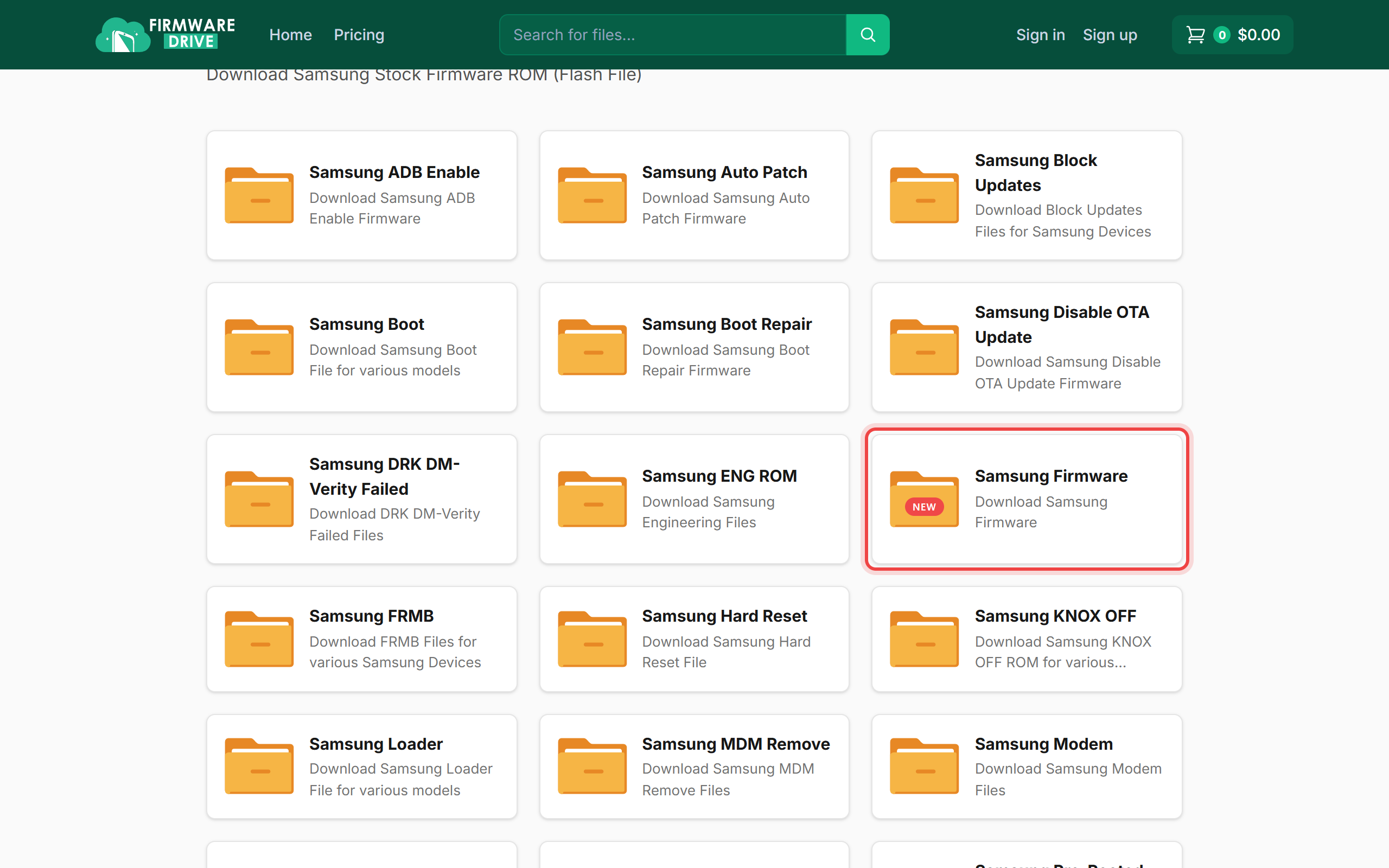
Step 3: Choose the file type
Some brands have several sub-folders. For normal stock ROMs, open Samsung Firmware.
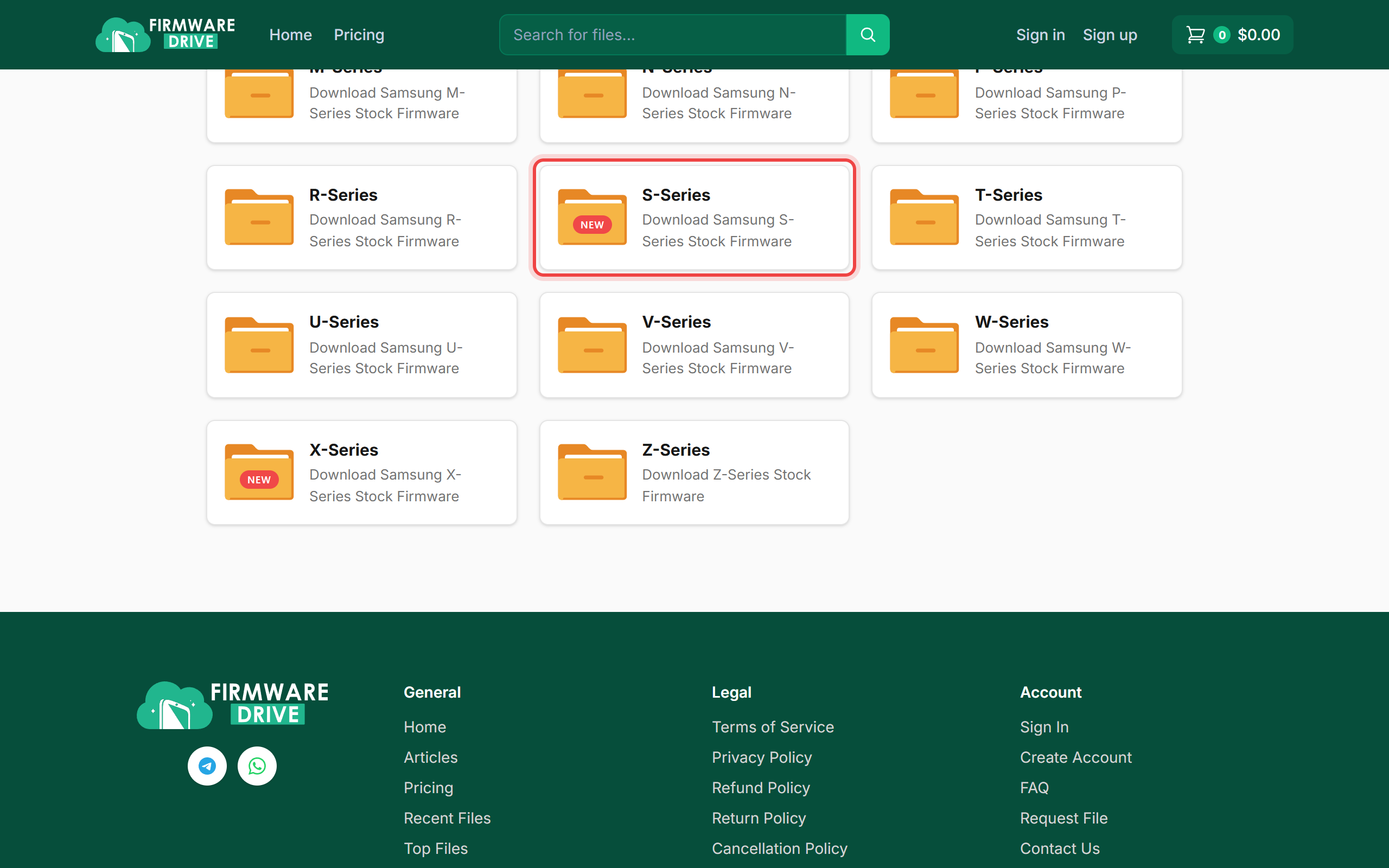
Step 4: Choose the series
Pick the series your model belongs to. Model SM-S942C starts with S, so open S-Series.
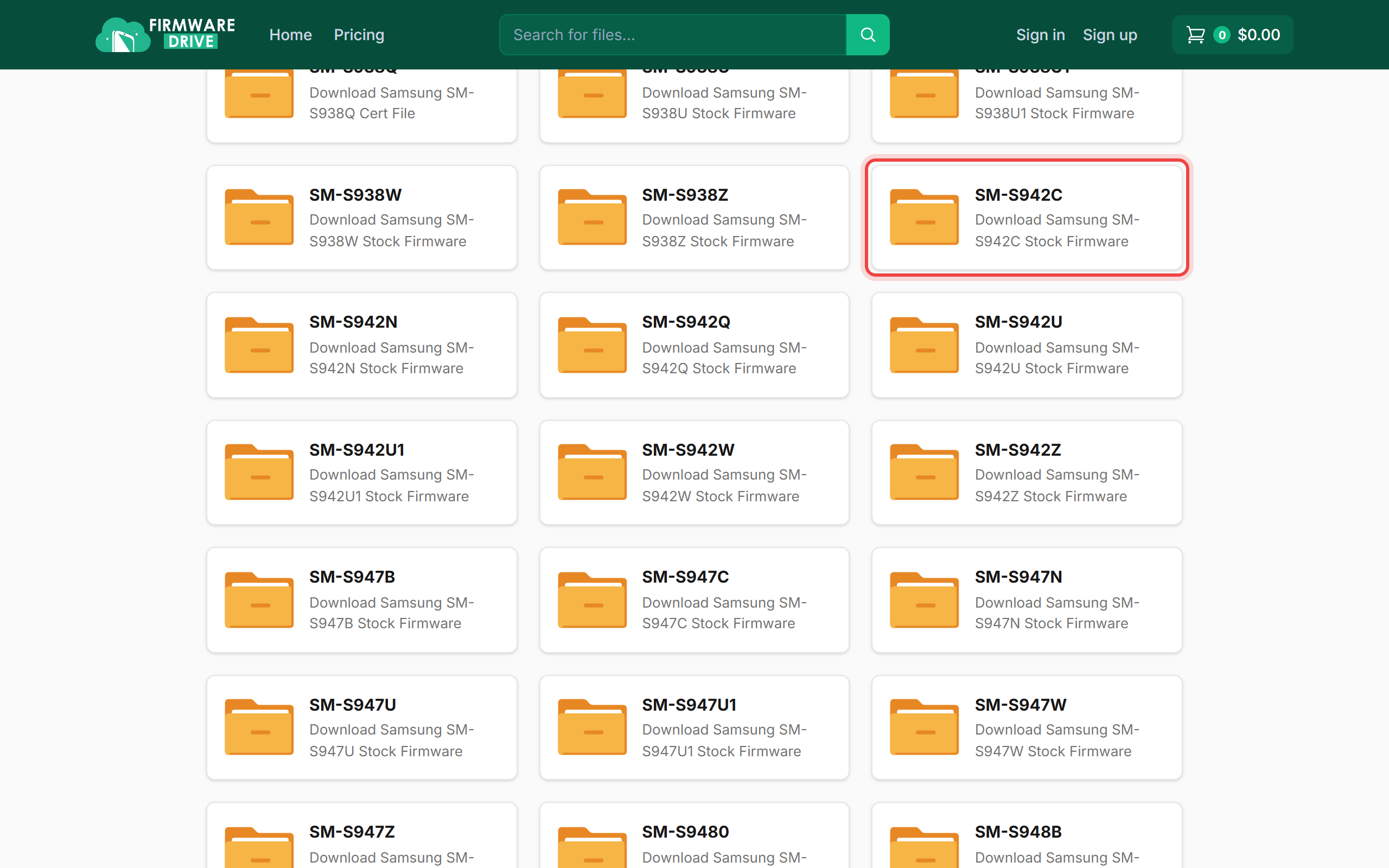
Step 5: Open your exact model
Find your exact model number. You can see it in Settings > About phone or on the box. Click it.
Step 6: Download the file
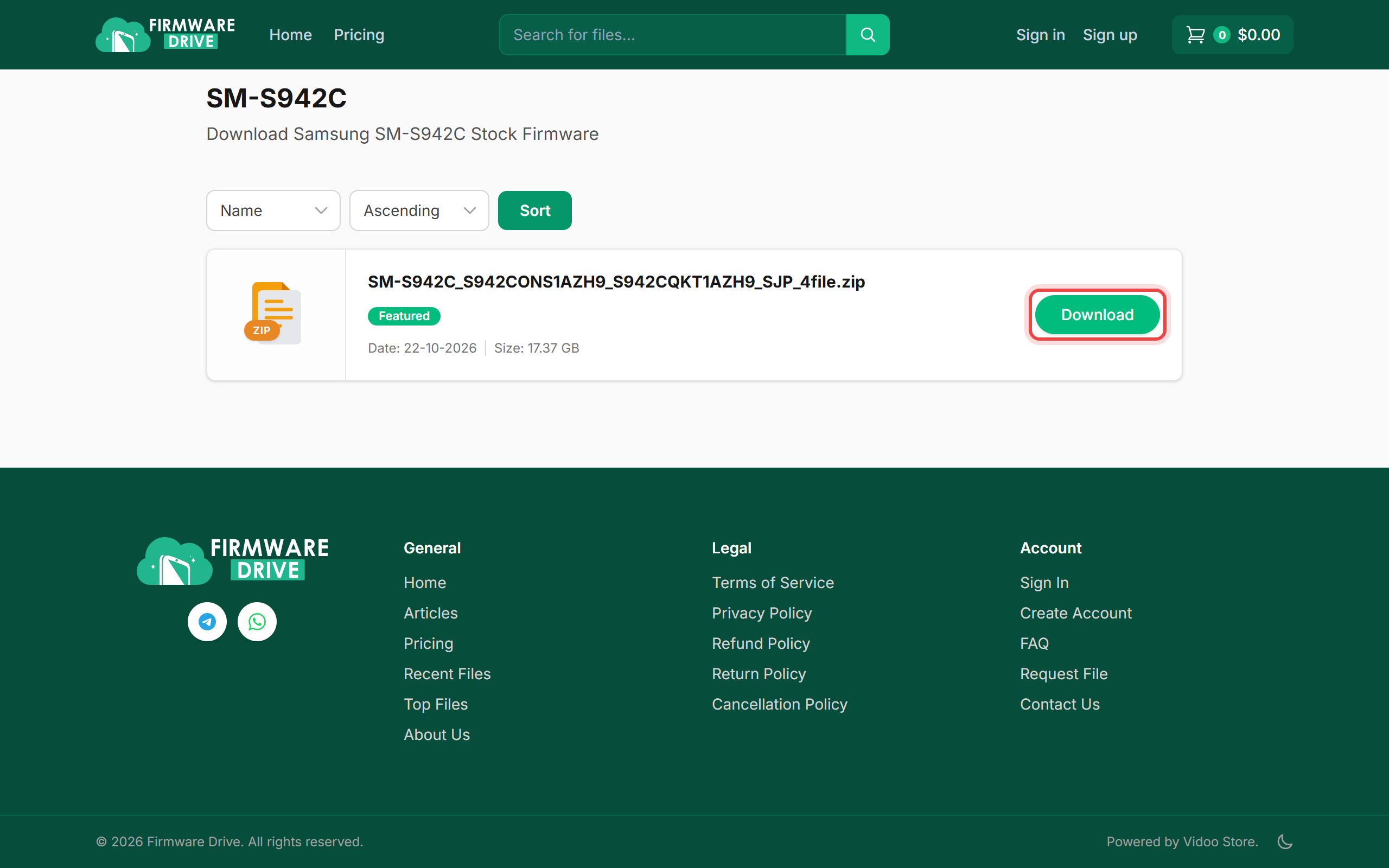
The model folder lists every file with its date and size. Click Download next to the one you want. Then follow How to download a file.
Good to know
- Use the Name and Ascending menus above the list to sort by name, date or size.
- Always match the full model number. Flashing firmware for a different model can damage the phone.
- Cannot find your model? Ask for it on the Request File page.
More guides: Help & Guides.