

How to Sign In With Two-Factor Authentication and Use Recovery Codes
Sign in with your authenticator app code, and use a recovery code if you lose your phone.
Once the authenticator app is turned on, each sign-in asks for a code from the app. When you set it up, Firmware Drive also gives you 10 one-time recovery codes. They are your way back in if your phone is lost, reset or replaced.
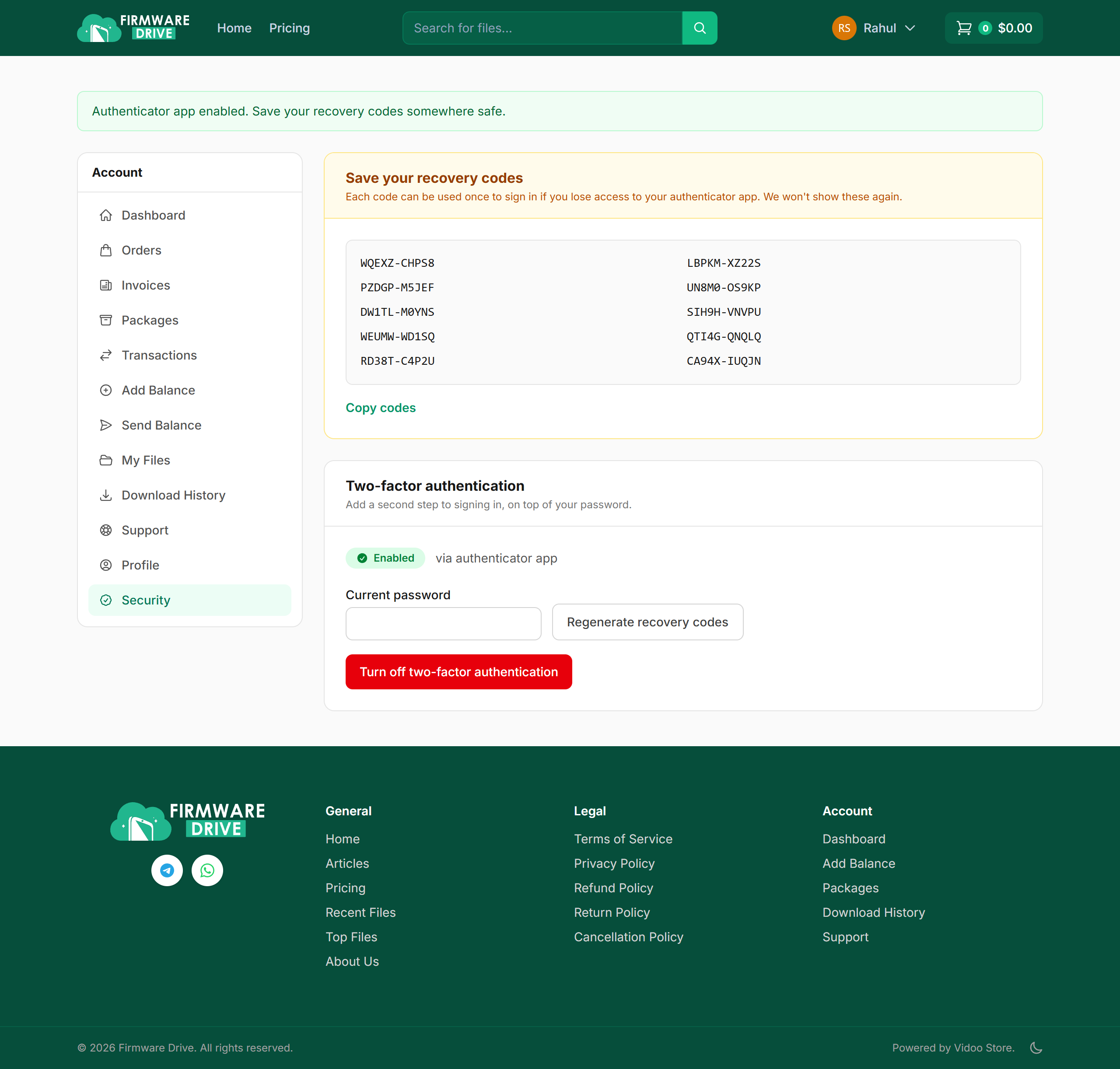
Step 1: Save your recovery codes
Right after you enable the authenticator app, a yellow box shows your recovery codes. Click Copy codes and keep them somewhere safe, such as a password manager or a printed sheet. They are shown only once.
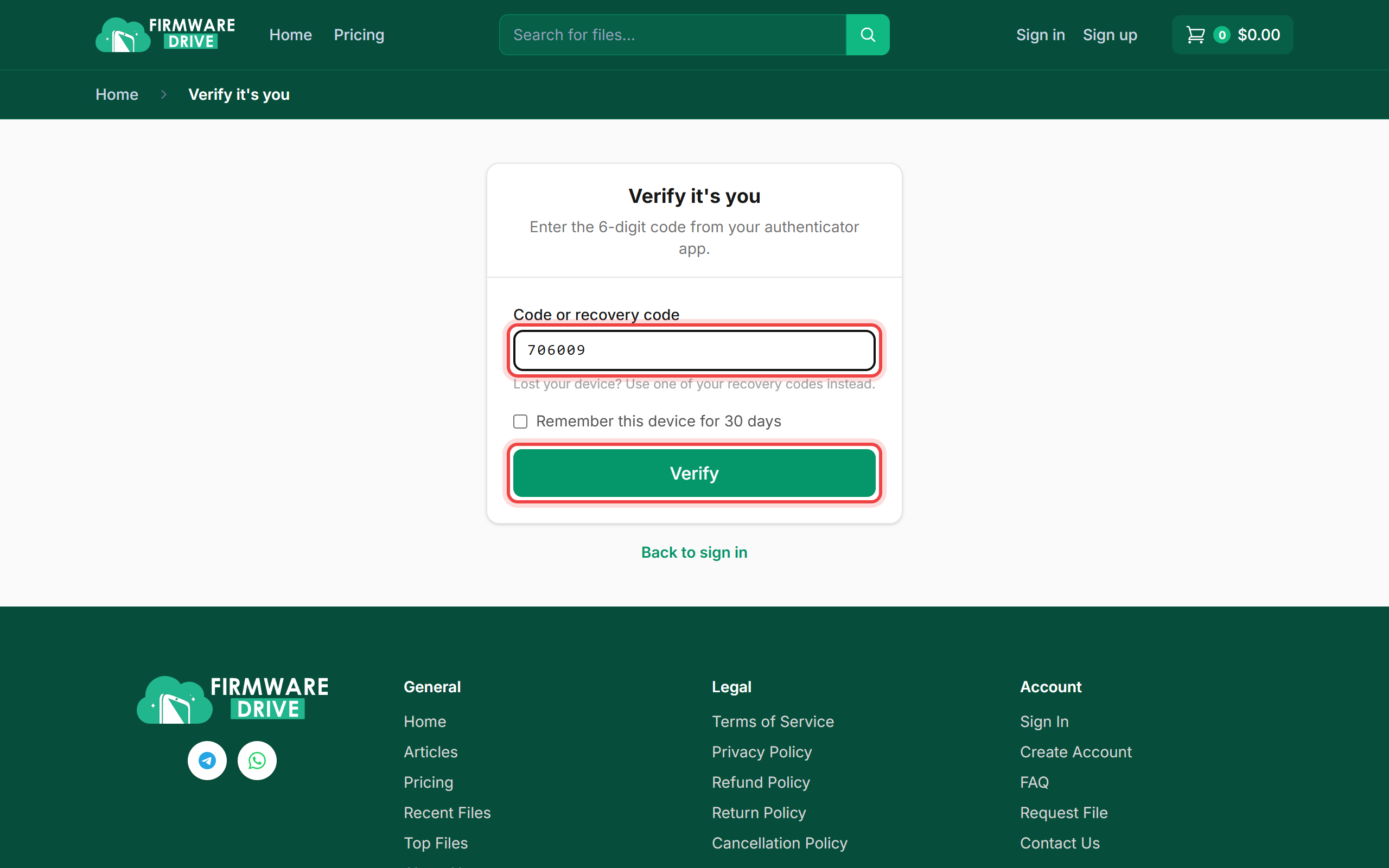
Step 2: Sign in with the app code
Sign in with your username and password. On Verify it's you, open your authenticator app, type the current 6-digit code for Firmware Drive and click Verify.
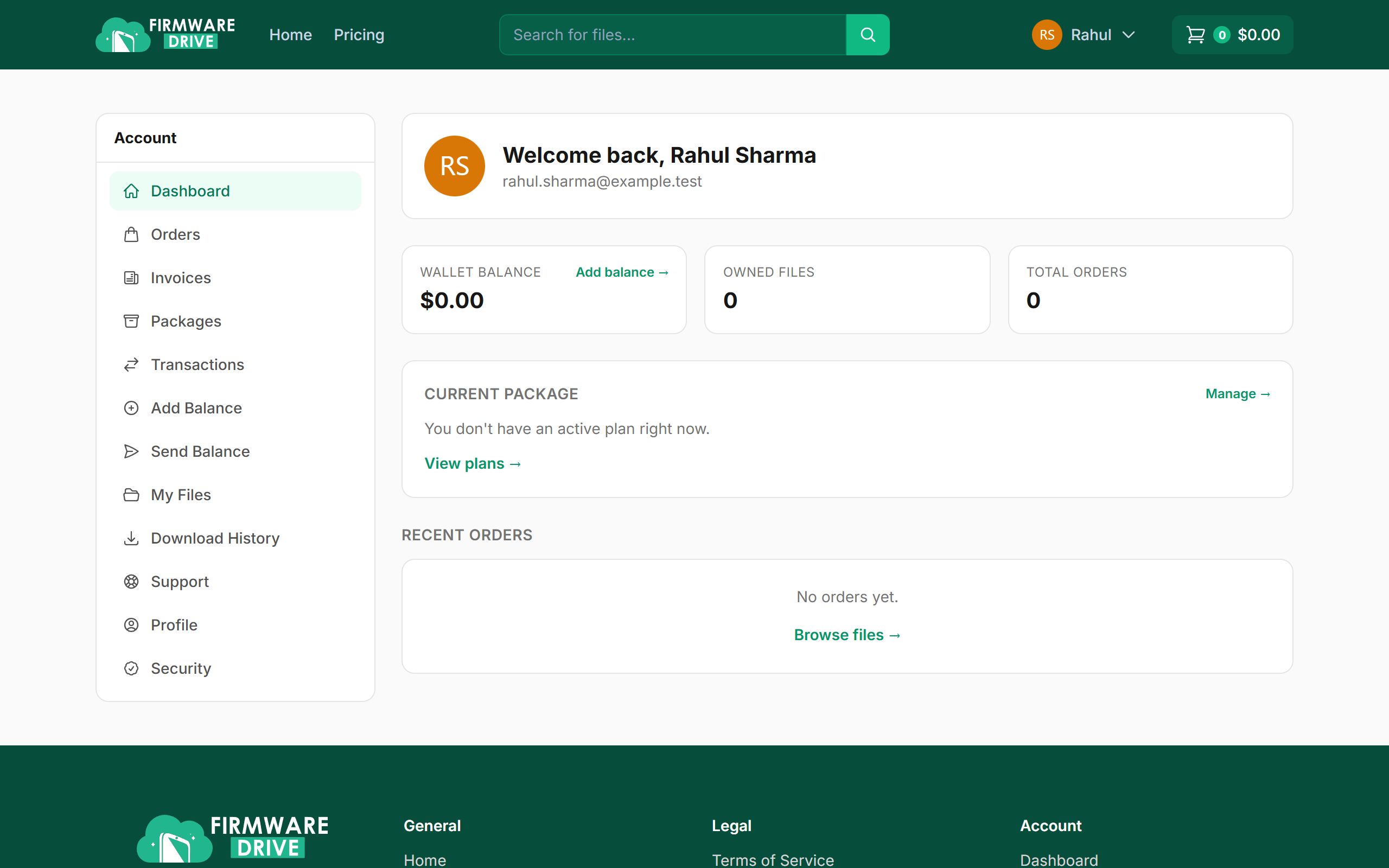
Step 3: You are in
A correct code takes you to your dashboard. Codes change every 30 seconds, so if one fails, wait for the next code.
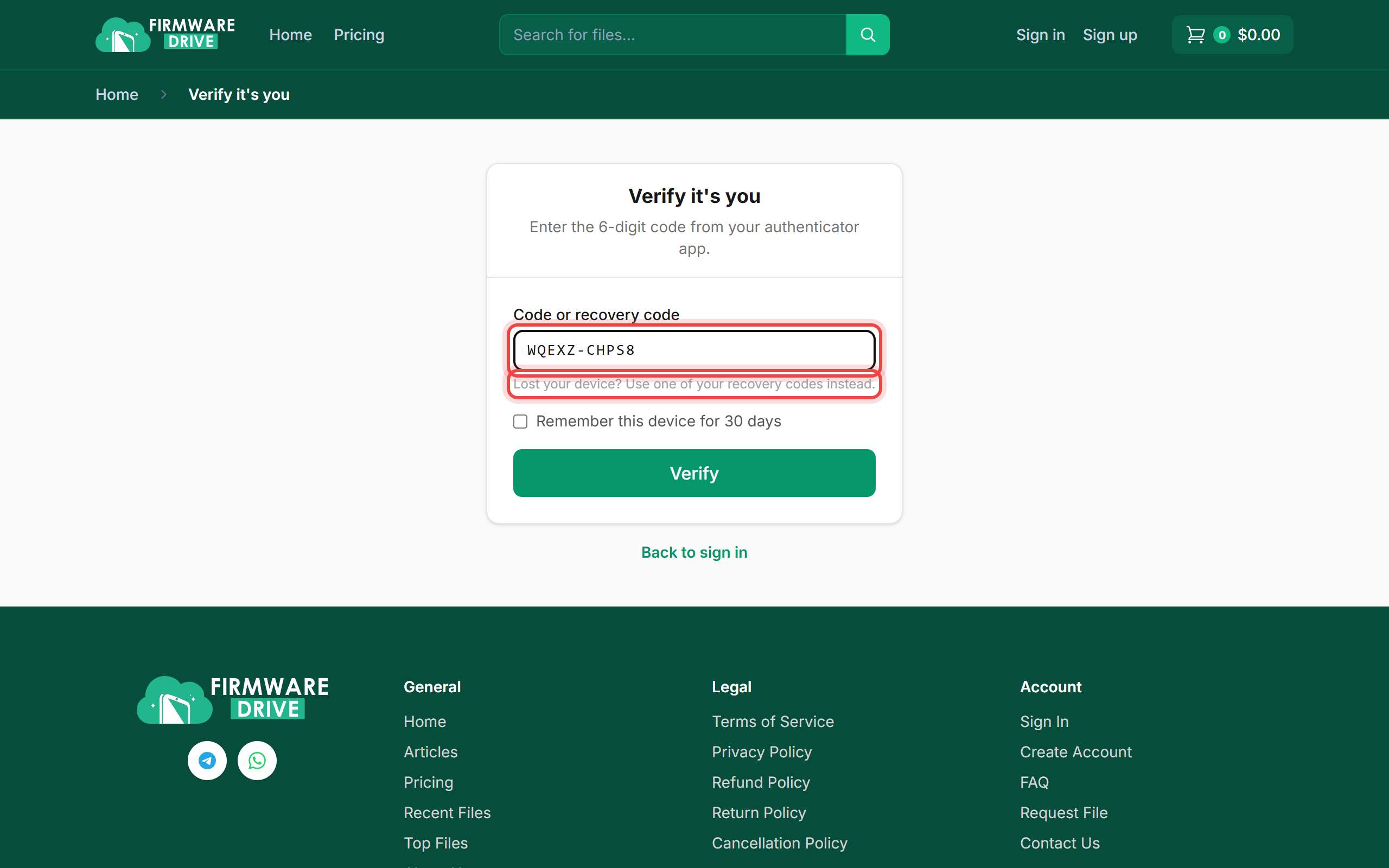
Step 4: Lost your phone? Use a recovery code
If you cannot open the app, type one of your recovery codes (for example ABCDE-12345) in the same Code or recovery code box and click Verify. Each recovery code works only once.
Step 5: Make new recovery codes or turn 2FA off
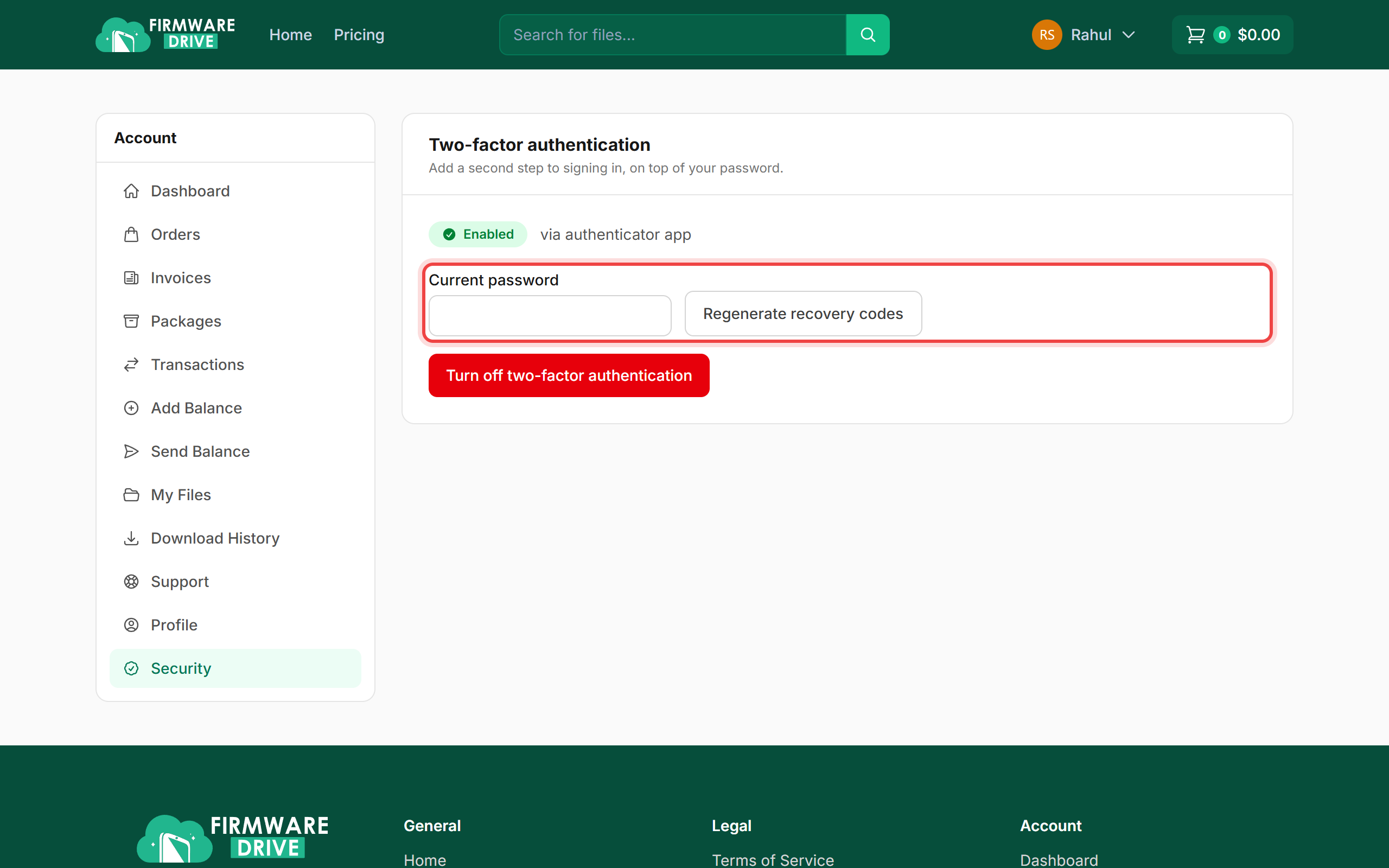
After using a recovery code, open Security. Enter your current password and click Regenerate recovery codes to get a fresh set (the old ones stop working). If you got a new phone, turn two-factor off and set the app up again.
Good to know
- Make sure your phone clock is set automatically. A wrong clock is the most common reason app codes are rejected.
- Lost both your phone and your recovery codes? Contact support from the Contact page with your username and order details.
More guides: Help & Guides.