
Help & Guides Rajesh Patel Nov 1, 2026 0 views
How to See Your Download History and Download a File Again
Find every file you have downloaded and get it again from Download History while its link is still active.
If a download was interrupted or you need the same file again, you do not have to search for it. Download History lists every link you have been issued.
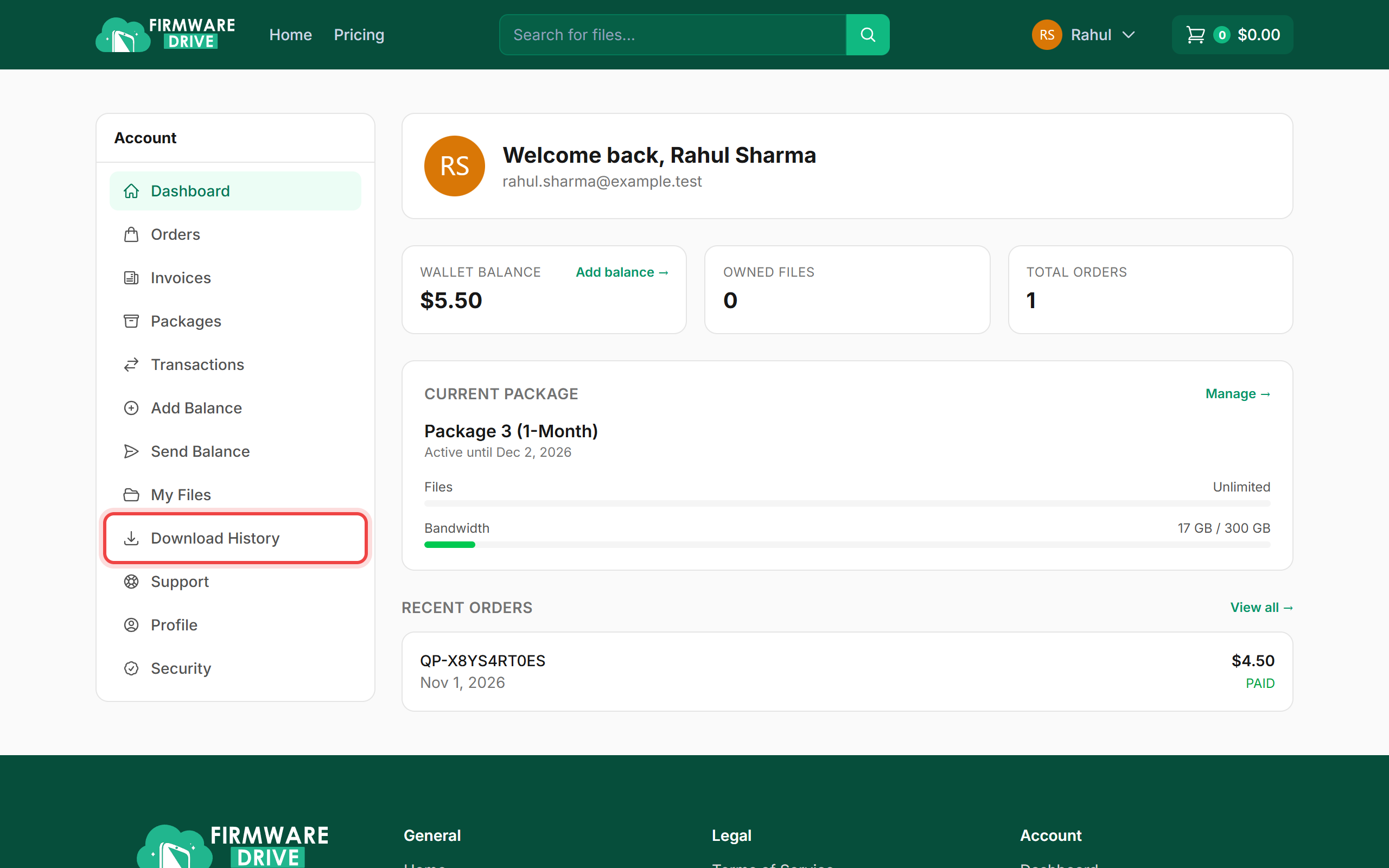
Step 1: Open Download History
Sign in and click Download History in the account menu.
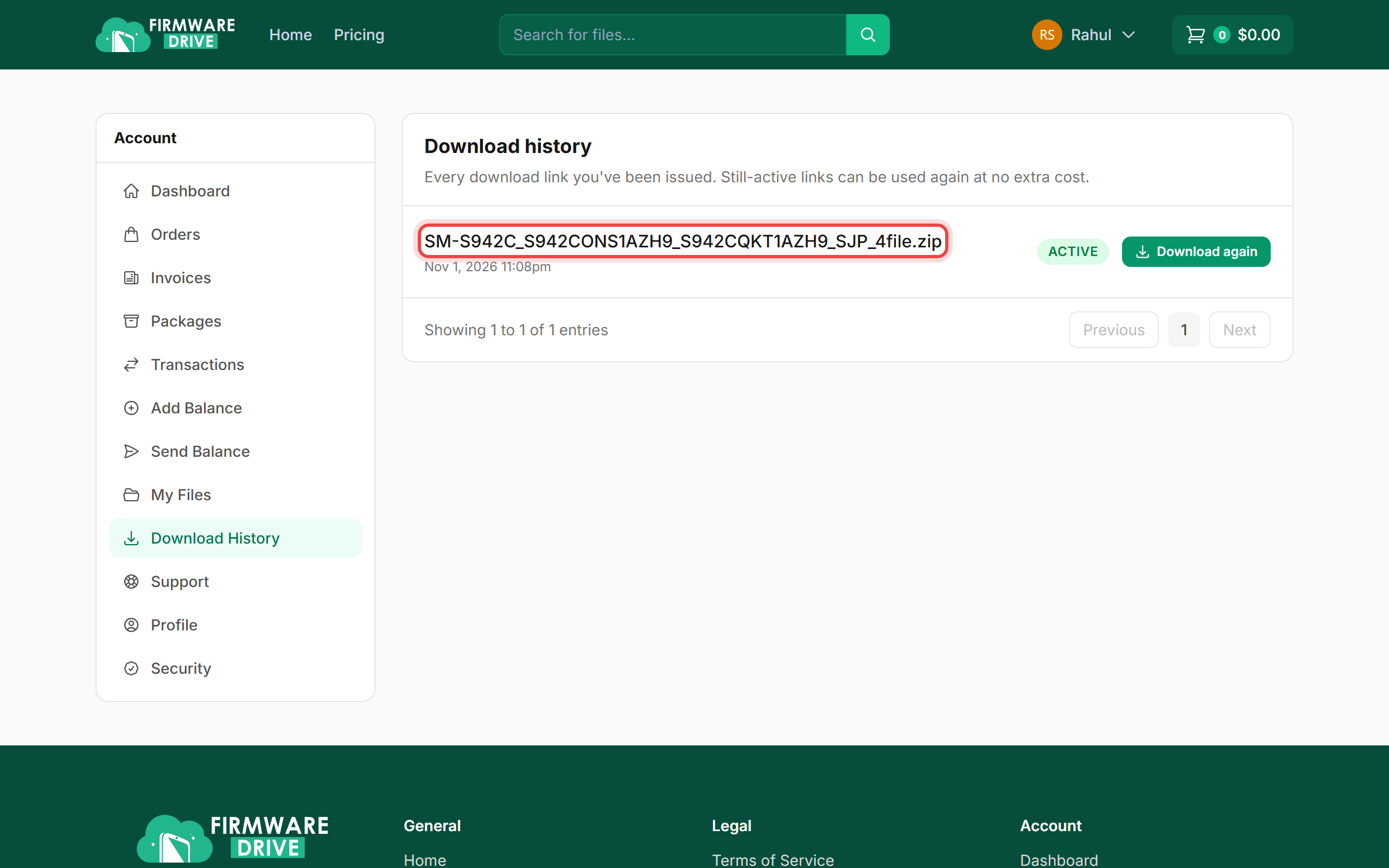
Step 2: Find the file
Each row shows the file name and the date. Links still marked ACTIVE can be used again at no extra cost. Click Download again, or click the file name to open its page.
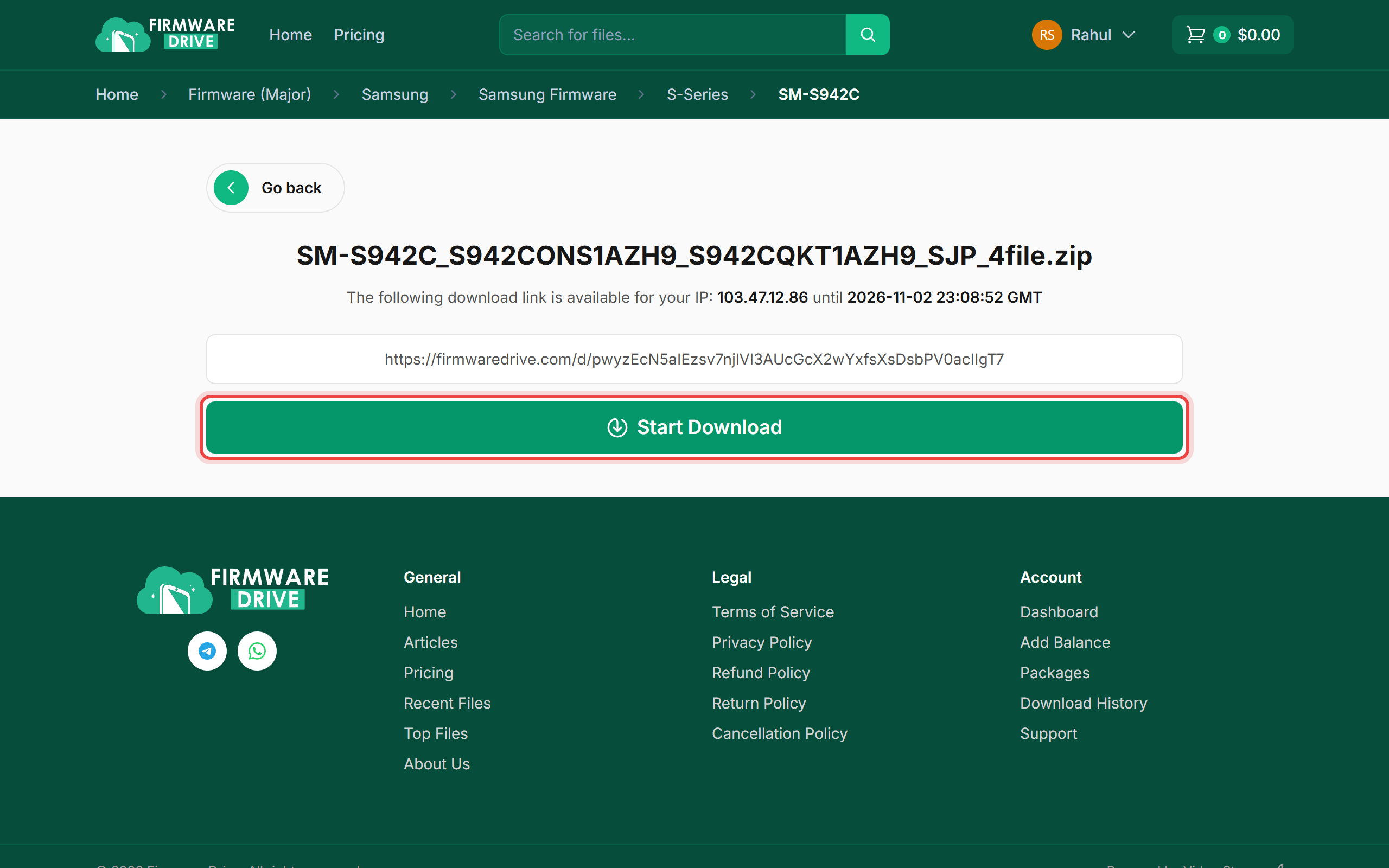
Step 3: Start the download
On the download page click Start Download. The page shows until when the link is valid.
Good to know
- Once a link expires, downloading the file again counts against your package like a new download.
- Use a download manager for big files so an interrupted download can resume.
More guides: Help & Guides.