

Help & Guides Rajesh Patel Nov 1, 2026 2 views
How to Add Balance to Your Wallet
Top up your Firmware Drive wallet once and pay for plans instantly without going through checkout each time.
Your wallet holds prepaid balance in USD. Once it is topped up, you can pay for any plan with one click.
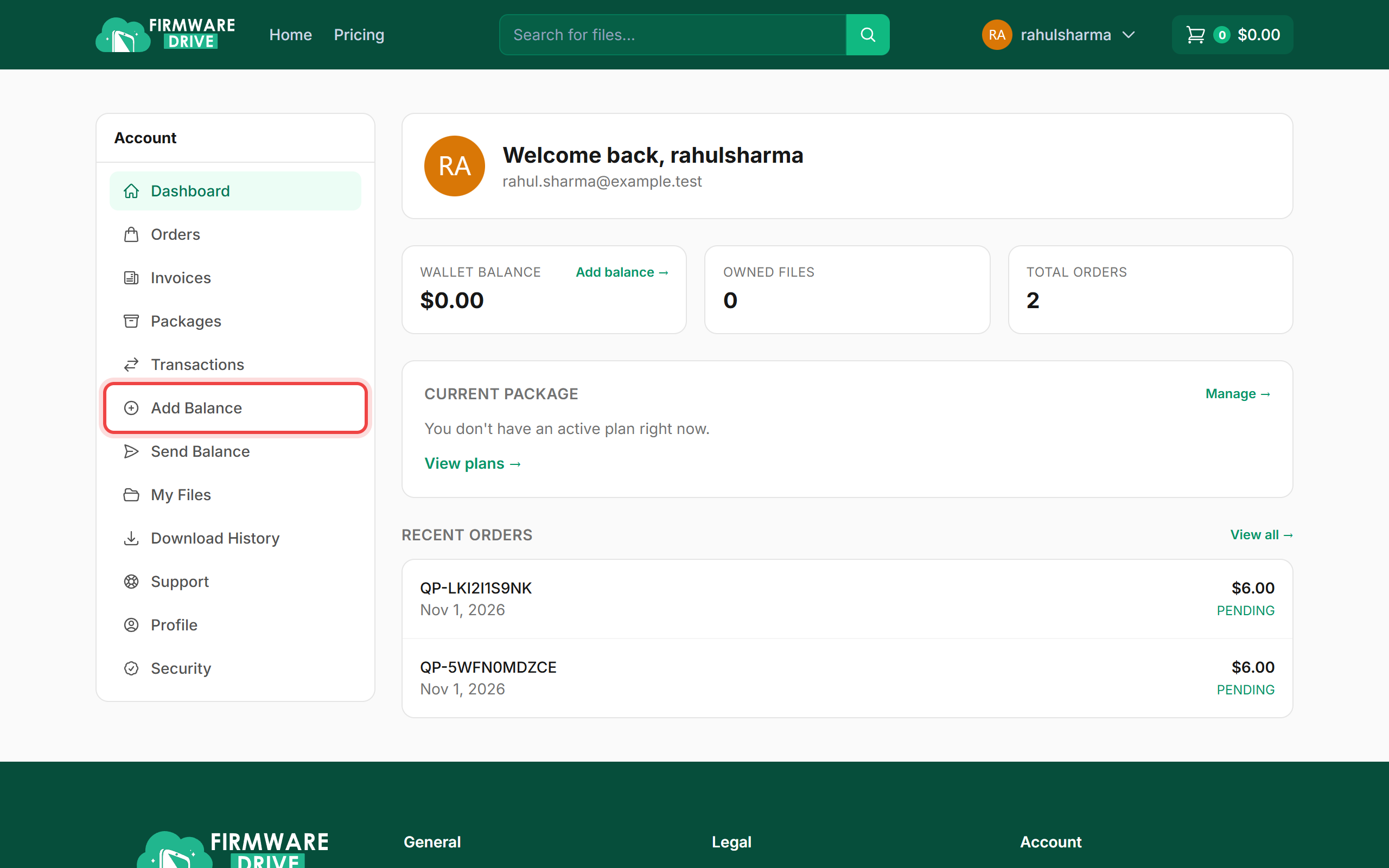
Step 1: Open Add Balance
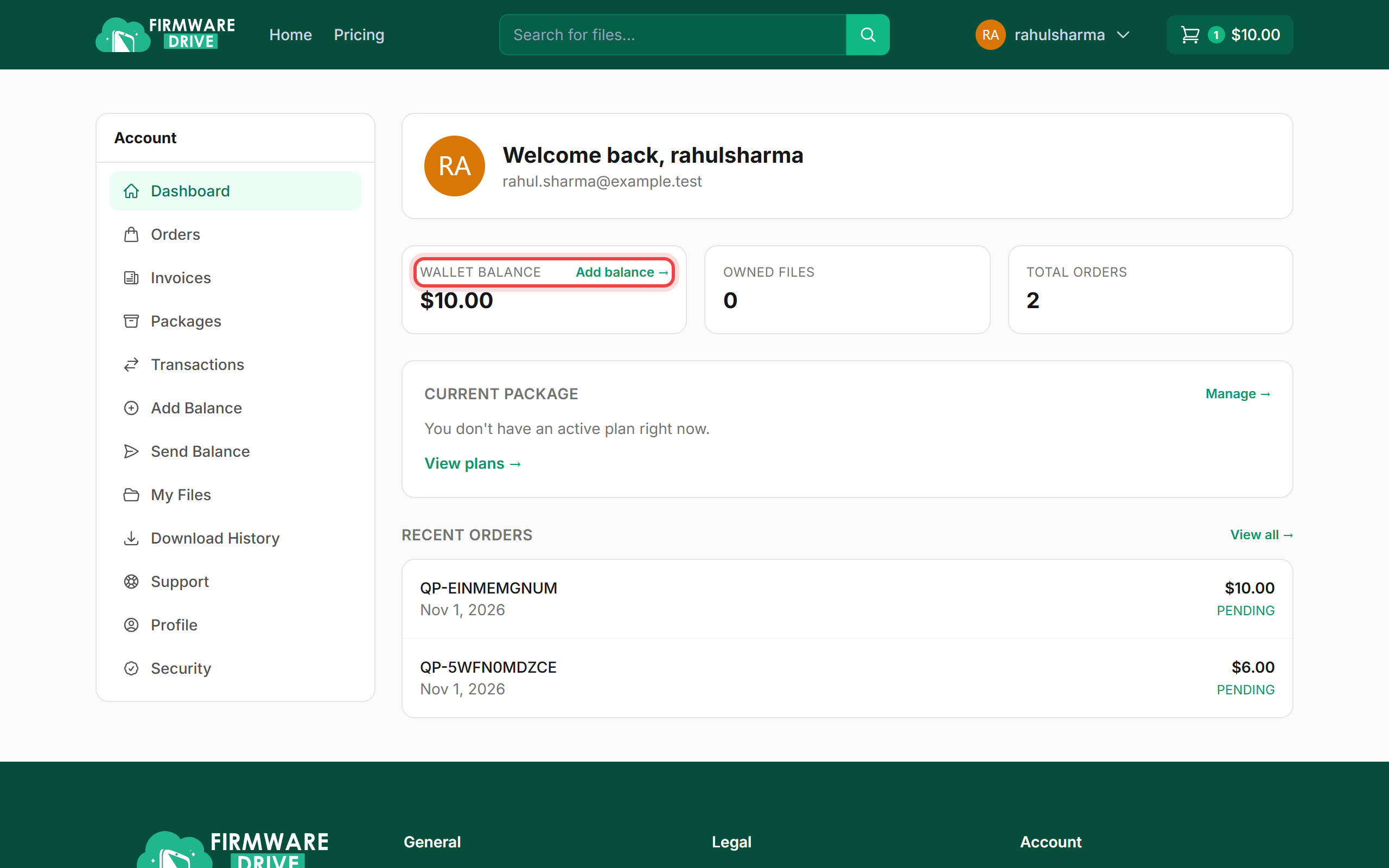
Sign in and click Add Balance in the account menu on the left (or Add balance on the Wallet Balance card).
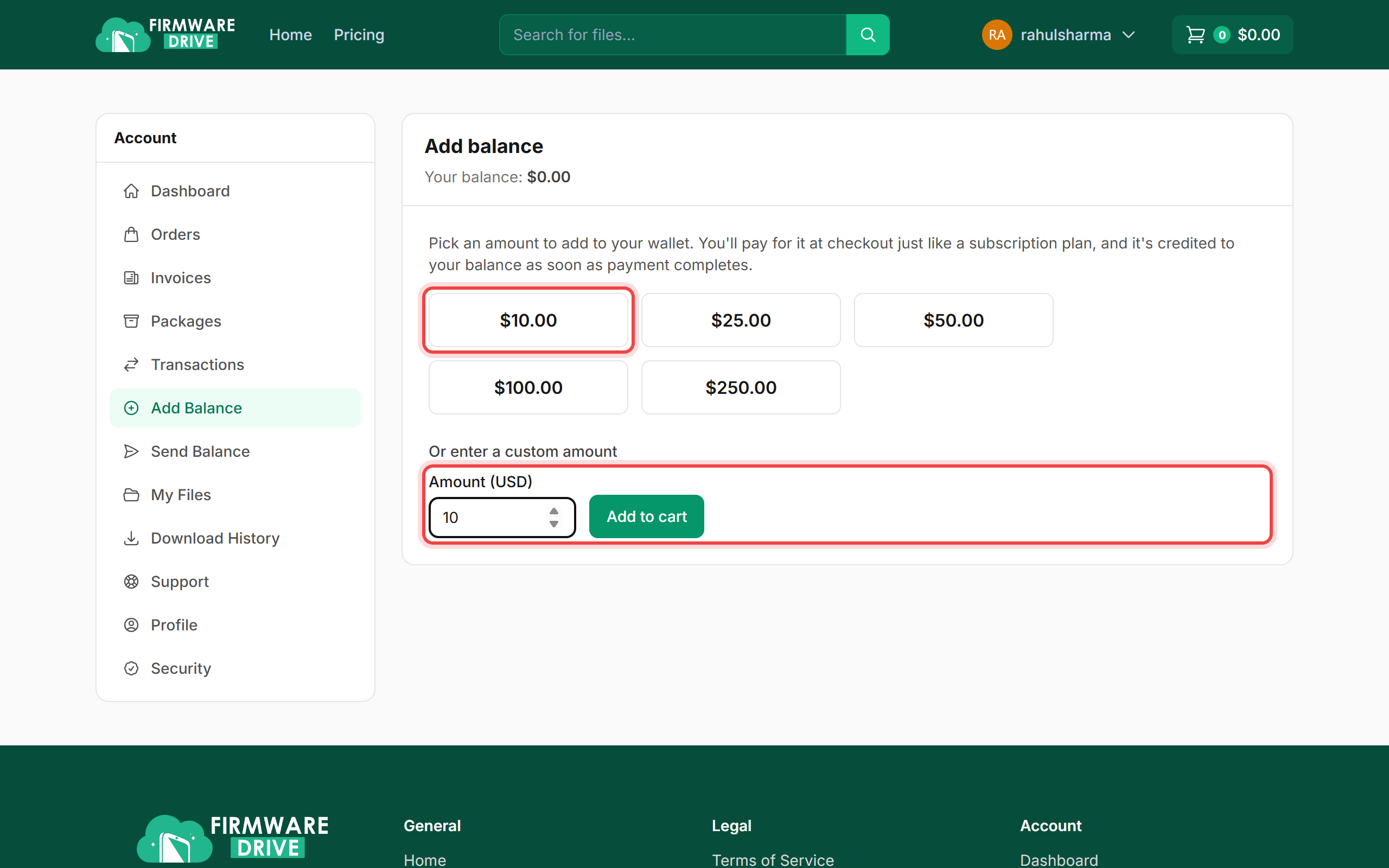
Step 2: Pick an amount
Click one of the quick amounts ($10, $25, $50, $100 or $250), or type your own amount in Amount (USD) and click Add to cart.
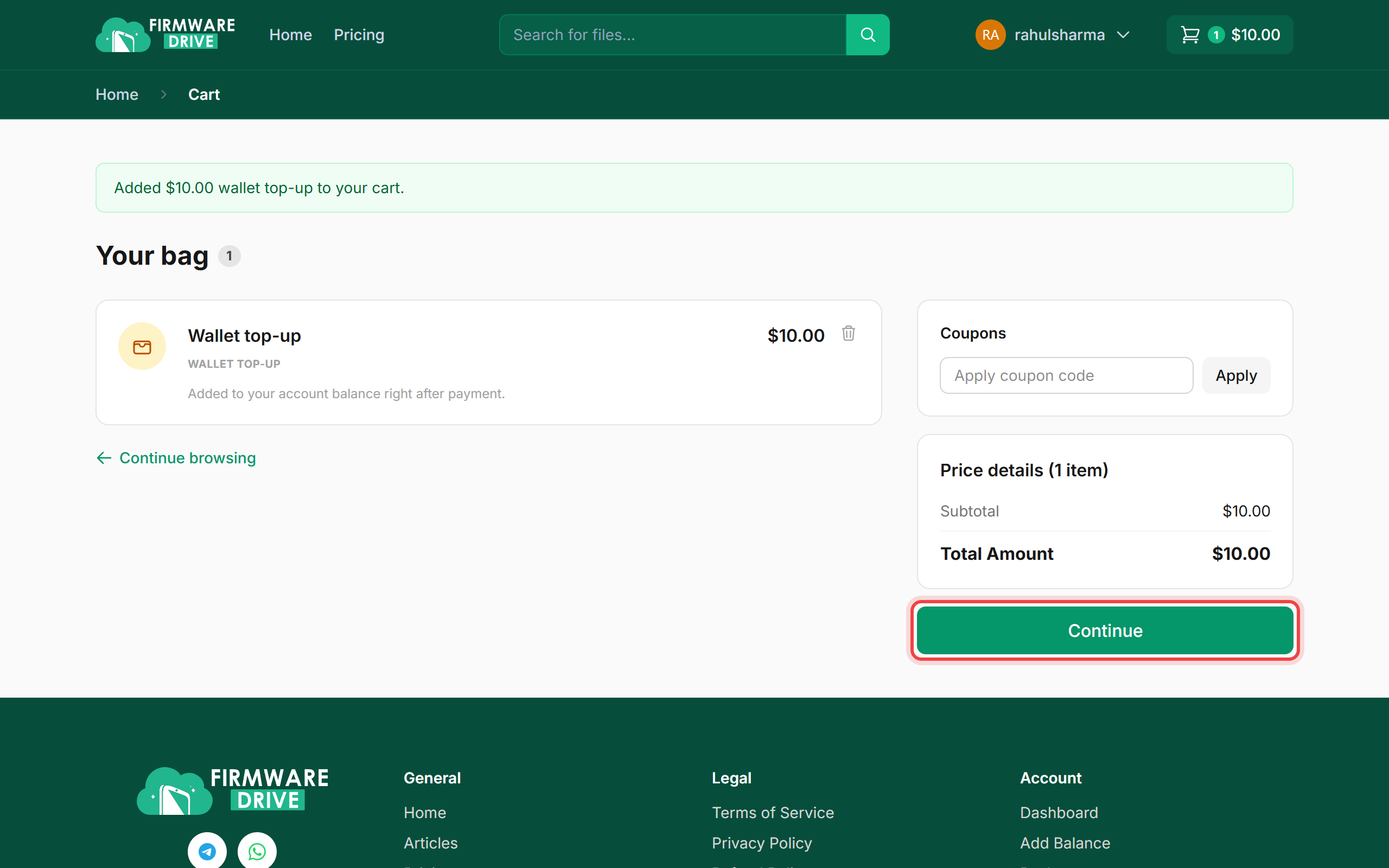
Step 3: Continue from the cart
The wallet top-up is added to your bag. Click Continue.
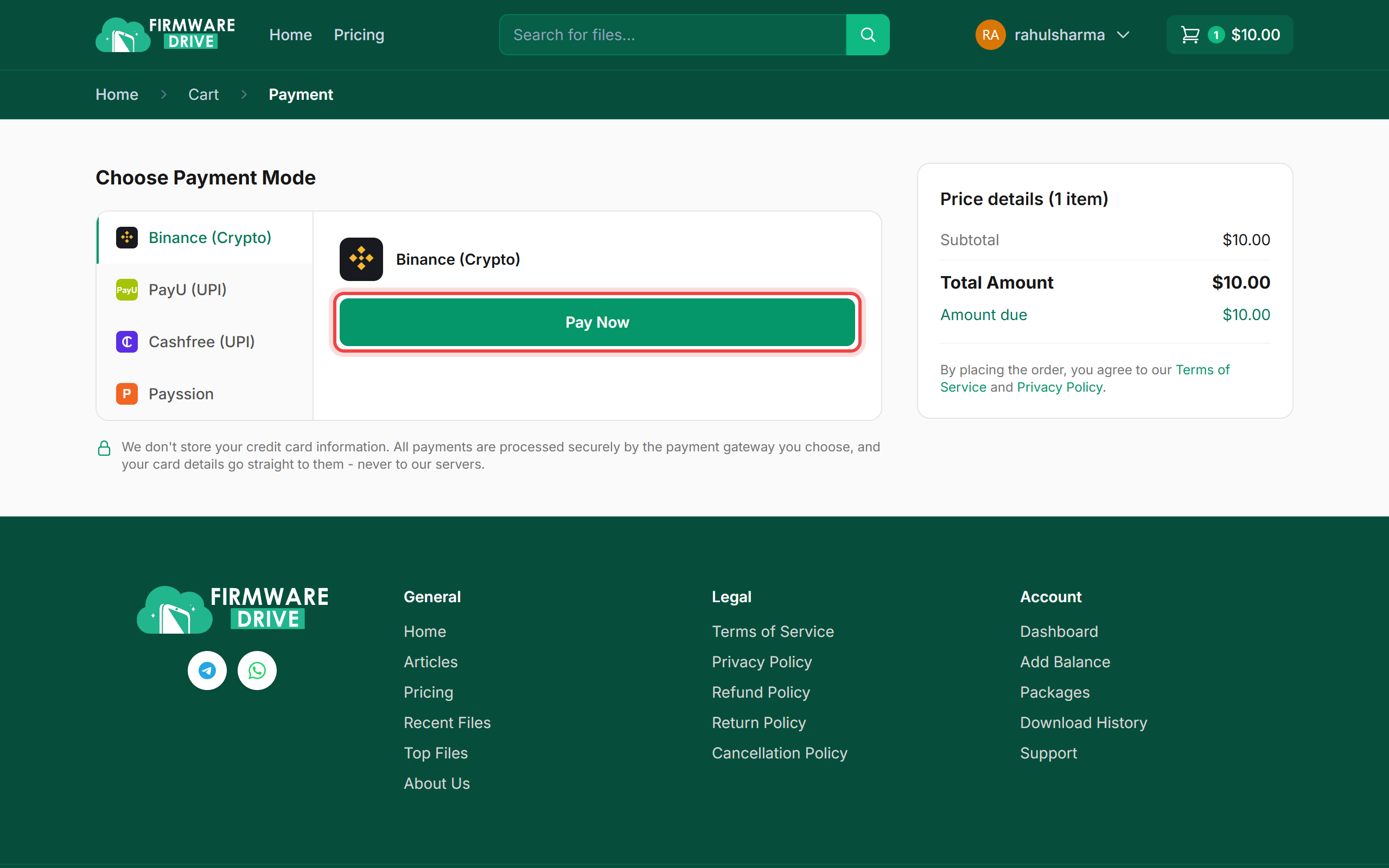
Step 4: Pay for the top-up
Choose a payment method and click Pay Now. A top-up has to be paid with a payment method, not with your existing wallet balance.
Step 5: Check your balance
As soon as the payment completes, the amount is added to your Wallet Balance on the dashboard.
Good to know
- You can send balance to another member with Send Balance in the account menu. It asks for a verification code sent to your email.
- All wallet movements are listed under Transactions.
More guides: Help & Guides.